FRAME 10 - ARCHIVE · LIGHTROOM CLASSIC PLUGIN · NEW
Your folder tree, on any drive. Kept in step.
A Lightroom Classic plugin that copies your edited photos to a backup drive in the same folders you see in Lightroom. Edit, move, delete - click Publish and the copies follow. One click keeps it current, without leaving Lightroom.
$29 ONE-TIME · LIGHTROOM CLASSIC · MACOS & WINDOWS · ONE KEY, TWO COMPUTERS
SAME FOLDERS · SAME NAMES · ONLY CHANGES WRITTEN
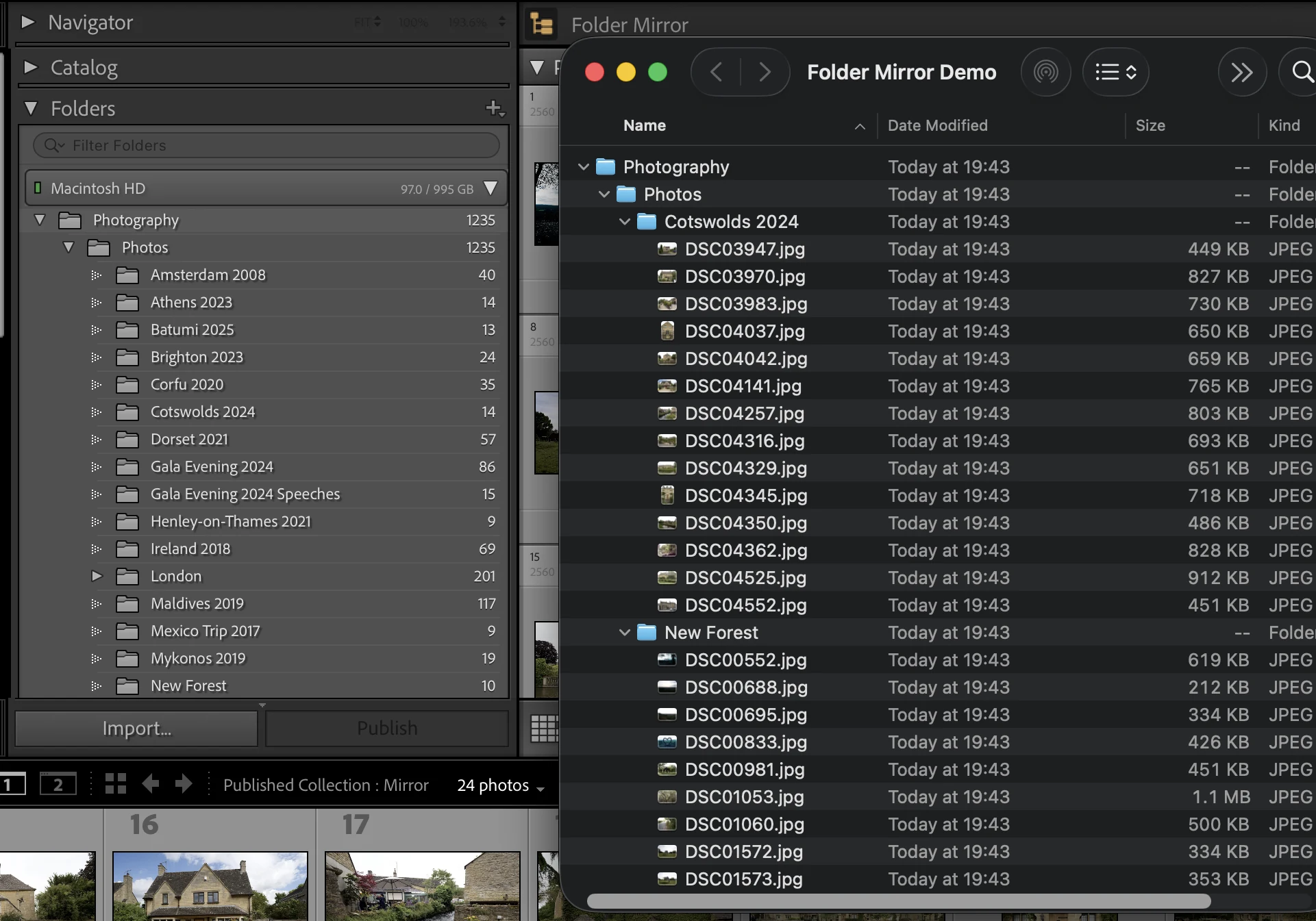
LEFT: WHAT LIGHTROOM SHOWS · RIGHT: WHAT LANDS ON THE DRIVEILLUSTRATION
SEE IT IN ACTION
Your folder tree,
mirrored in 79 seconds.

CLICK TO PLAY - 79 SECONDS, WITH SOUND, CAPTIONS ON SCREEN
Read the transcript
The video is narrated, and the narration is also captioned on screen. The Lightroom and drive windows are drawn for the video, with the plugin's real settings and messages. This is the full spoken text:
- You spent years organizing your folders in Lightroom.
- Export flattens them into one folder - so you redo each one by hand.
- Folder Mirror copies your whole folder tree, and keeps it up to date.
- Pick a drive - a backup disk, or a Dropbox folder. The example shows where each photo lands.
- Click Publish. The first run copies everything, with your edits.
- Same folders, same names, on the drive. Nothing to sort out.
- Edit a photo, and only that file is redone. The rest stay untouched.
- Rename or move a folder in Lightroom, and the copies simply follow. Nothing is exported again.
- Coming from another folder publisher? Import it. Your existing copies are kept, not redone.
- Plus a mirror check, the Trash instead of deletes, and folder-keeping exports.
- Folder Mirror. Set it up once, then one click.
FEATURES - WHAT DEVELOPS
Built for photographers who keep
their own backups.
Your folder tree, copied exactly.
Every copy lands in the same folders you see in Lightroom's Folders panel, under its own file name. Open the drive and everything is where you expect it.
Edit once. Only that file changes.
Change an edit, the GPS or a caption, and Publish writes that one photo again, in place. The rest are skipped - even the ones Lightroom marks as modified when nothing really changed.
Move a folder. The mirror follows.
Move photos to another folder or rename a folder in Lightroom, and Publish moves the copies on the drive. Nothing is exported again, so a reorganized year takes seconds, not hours.
Switch without starting over.
Already keep a mirror with another folder plugin or Lightroom's Hard Drive service? Import it. The copies already on your drive are taken over where they are - nothing is exported again.
Nothing of yours gets overwritten.
Your originals are never touched, and a file Folder Mirror didn't write is never replaced without asking you - the new copy gets its own name. Removed photos go to the Trash, so nothing is lost by accident.
One-off export, folders kept.
Need a single export with the tree intact - for a client, a print lab or a new computer? Pick Folder Mirror in Lightroom's Export dialog and the folders come along.
UNDER THE SAFELIGHT - WHY IT'S DIFFERENT
A backup that keeps up with how you work.
The usual way: export a year of photos into one folder and lose the tree you spent years building in the Folders panel - or export folder by folder, by hand. Next month you edit a dozen of those photos, move a shoot, rename a folder. Now the copy is out of date and nothing tells you which files are stale, so you export the lot again.
Folder Mirror keeps the copy in step for you. Choose the folder once and every photo lands in the same tree as your Folders panel, under its own name. After that, Publish writes only what changed: an edited photo is exported again, a moved one is moved on the drive, a removed one goes to the Trash. Everything else is left alone, so staying current takes a click, not a weekend.
HOW IT WORKS - THREE STEPS
Set it up once.
Then one click.
Point
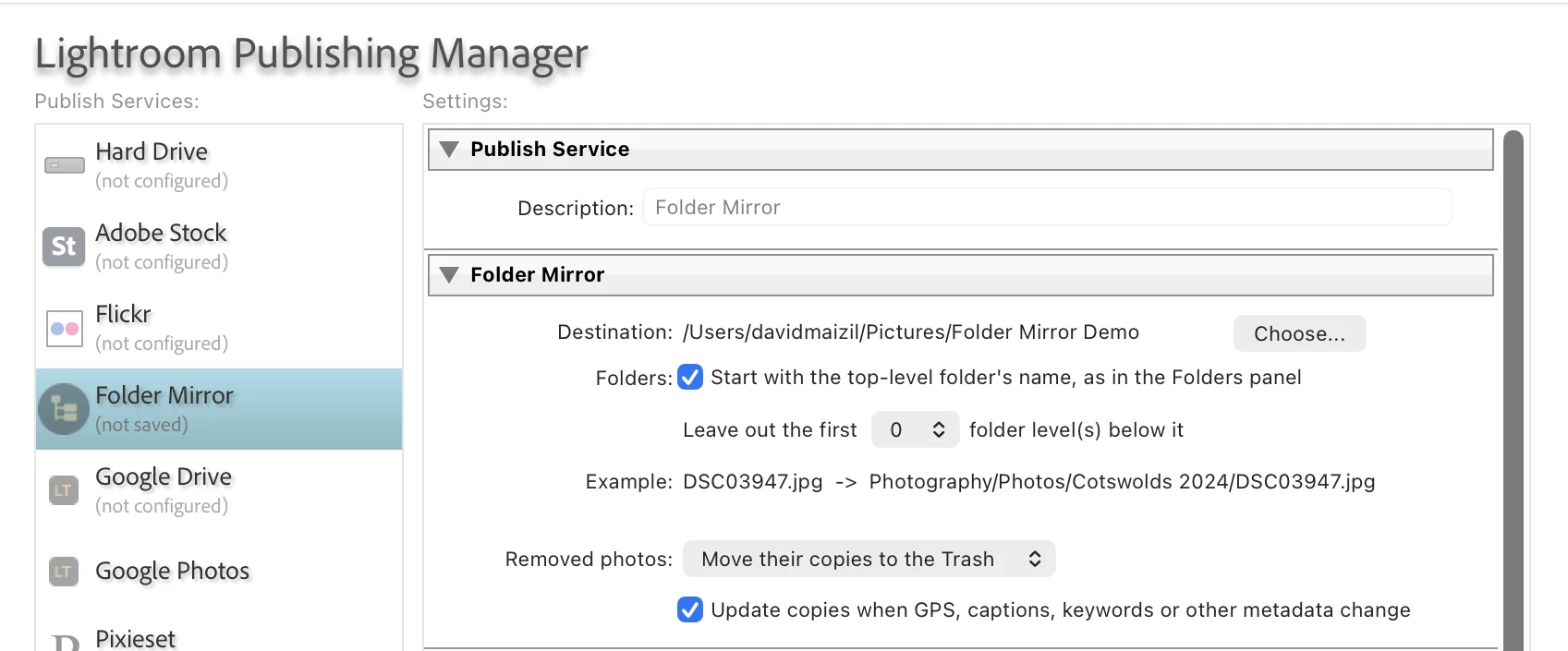
Add the plugin, paste your license key and pick the folder for the mirror - a backup drive, or a folder Dropbox, OneDrive or iCloud syncs.
Collect
Drop photos into a published collection - or make a smart collection that catches whole folders, so new photos join it by themselves.
Publish
Click Publish. The first run copies everything. From then on, each Publish writes only what you changed.
FAQ - BEFORE YOU INSTALL
Frequently asked
questions.
Which Lightroom versions and computers does it work on?
Folder Mirror works with Adobe Lightroom Classic (the desktop version) on macOS and Windows. It does not work with the cloud-based "Lightroom" app. One license key works on two computers, so your desktop and your laptop are both covered.
Lightroom can already export. Why would I need this?
Lightroom's Export and its Hard Drive publish service write everything into the one folder you pick. The folder tree you built in the Folders panel does not come along, so a big export lands as one long list of files, or you export folder by folder by hand.
And once it is exported, nothing keeps it current: edit a photo, move a shoot or rename a folder and the copy is out of date. Folder Mirror keeps the tree, and every Publish writes only what changed.
I use Jeffrey Friedl's Folder Publisher. How is this different, and can I switch?
Folder Publisher is a long-standing plugin with a much bigger file-renaming language and FTP upload - if you rely on those, it is the better fit. Folder Mirror is built around keeping the copies current with no extra steps: photos and folders you move or rename in Lightroom are moved on the drive without being exported again, photos Lightroom flags as modified when nothing really changed are skipped, and the settings sit in one place in the publish service dialog.
Switching costs nothing. Folder Mirror imports your existing Folder Publisher service - its collections and the copies already on the drive - and takes the copies over where they are, without exporting them again. Your Folder Publisher service is left untouched.
Folder Publisher is Jeffrey Friedl's plugin; Lightroom Tools is not affiliated with him or his plugin.
Where can the mirror live?
Any folder you can write to: an external backup drive, a second internal drive, or a folder that Dropbox, OneDrive, Google Drive or iCloud Drive syncs for you (keep that folder set to stay on this device, not online-only, so the copies are there when Folder Mirror checks them). The only places it refuses are a folder that holds your photos (or a folder above one) and a folder above your catalog, so a copy can never land on top of an original. A folder beside your photo folders is fine - a Family Scans Mirror folder next to Pictures inside the same Dropbox, say.
On a Mac, a drive formatted for Windows (NTFS) can only be read, not written - Folder Mirror tells you so instead of failing quietly.
What happens when I edit, move or rename photos?
Edit a photo and Publish exports it again, in the same place under the same name. Change its GPS, caption, title, keywords or other metadata and it is exported again too - one checkbox turns that off.
Move a photo to another folder, or rename a folder, and Publish moves the copies on the drive without exporting them again, then tidies away the empty folder left behind.
Will it export my whole library again when nothing changed?
No. Before exporting anything, Folder Mirror checks each photo and skips the ones that have not changed - including the ones Lightroom sometimes marks as modified when nothing really changed. In our testing, a Publish over 5,000 unchanged photos finished in under a minute and wrote nothing.
What happens when I remove a photo?
On your next Publish, its copy goes to the Trash, so you can still get it back. You can choose to delete copies instead, or to leave them on the drive. If the same photo is in two of your published collections, its copy stays until the last one lets it go. Your original is never touched.
What if a drive is unplugged, or a file goes missing?
If the backup drive is not connected, Publish stops with a clear "connect the drive" message and creates nothing anywhere else. Your edits wait, and the next Publish catches up.
If the drive with your originals is offline, those photos are skipped - never exported from a low-quality preview - and stay queued for next time.
And if you ever wonder whether the mirror is complete, Check mirror compares the drive with Lightroom: missing copies are queued again, and files Folder Mirror did not write are listed and only moved to the Trash if you say so.
Does it change my photos?
No. Nothing about your photos in Lightroom changes - not your edits, not your ratings, not your originals, not your catalog. Folder Mirror exports copies through Lightroom's normal export and puts them in the mirror folder. It never replaces, moves or removes an original, and it never overwrites a file it did not write itself without asking you first - a new copy gets its own name instead.
What do the copies look like?
Whatever you choose in Lightroom's own export settings - JPEG, TIFF or another format, any size and quality, with sharpening and a watermark if you like. Videos are copied too.
Each copy keeps its original file name. A virtual copy gets its copy name added, like "DSC07440 (Copy 1).jpg", and two files that would share a name get -2, -3.
Do my photos leave my computer?
No. Folder Mirror uploads nothing and has no account to sign in to. The copies go only to the folder you choose. If that folder is one your Dropbox or iCloud syncs, that service uploads it as usual - Folder Mirror itself never does. See our Privacy Policy for details.
Can I get a refund?
Yes - 30-day money-back guarantee, no questions asked. If it is not right for you for any reason, email us within 30 days of purchase and we will refund you in full. We would rather you be happy than keep a sale. Full terms on the Terms of Service page.
Every step, from install to switching from another plugin, is in the setup guide. Still have a question? Email [email protected] or use the contact form - a real person reads every message and replies, usually within a day. Ask before you buy; we would rather answer than have you guess.
FROM THE JOURNAL
Deep dives for
Lightroom photographers.
THE PRINT - READY WHEN YOU ARE
Stop rebuilding your backup
by hand.
Mirror your Lightroom folder tree to any drive. Edit, move, delete - click Publish and the copies follow.
- One-time $29, unlimited photos - no subscription, ever
- 30-day money-back guarantee - no questions asked
- Nothing is uploaded - the copies go only where you point them
LIGHTROOM CLASSIC ON MACOS OR WINDOWS · ONE KEY, TWO COMPUTERS