What Are Lightroom Classic Publish Services, and Why Should Every Photographer Use Them?
Quick Answer
A Publish Service is Lightroom Classic's system for maintaining a live, persistent relationship between your catalog and a destination - a local folder, Google Photos, a portfolio site, or anywhere a plugin supports. Unlike Export, which is a one-shot file dump with no memory, Publish tracks each photo's state (New, Modified, Published, Deleted) and queues only what changed since your last publish. Retouch an image? It automatically moves to the republish queue. Click Publish again and only that photo goes out.
What Is a Publish Service in Lightroom Classic (and How Is It Different from Export)?
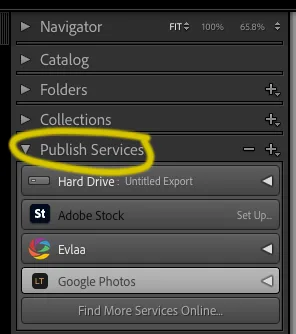
Most photographers discover Publish Services by accident - they notice the panel at the bottom of the Library module's left sidebar and wonder what it does. Here's the clearest way to understand it.
Export is stateless. You select photos, choose settings, hit Export, and Lightroom produces files. It has no memory of what you exported before. If you go back and adjust a photo's exposure, Lightroom doesn't know you previously exported that image. You have to remember - and re-export manually.
Publish is stateful. Every photo you add to a Publish Collection gets a tracked relationship with the destination. Lightroom knows which photos have been sent, which ones have changed since they were sent, and which ones you've removed. When you click Publish, it handles only what needs to move - nothing more.
For a one-time client delivery or a print order, Export is the right tool. For any destination you want to keep current over time - a Google Photos album, a portfolio, a shared family library - Publish Services eliminate the manual accounting that Export requires.
How Does Lightroom Track Which Photos Need Republishing?
This is what most guides skip over, and it's the part that makes Publish Services genuinely powerful.
Under the hood, Lightroom's publish SDK maintains a state machine for every photo in every Publish Collection. Each photo is in exactly one of four states at any given time:
- New - added to the collection, but never sent to the destination yet
- Published - successfully sent; the destination copy is current
- Modified - sent before, but develop settings or metadata have changed since
- Deleted - removed from the collection; the destination still has the old copy
Remove a photo from the collection and it enters a separate Deleted queue - Lightroom flags it, but the plugin decides what happens to the destination copy (Google Photos, for instance, routes it to a “To Delete” album for review).
Lightroom computes "modified" by storing a fingerprint of each photo's develop settings at publish time, then comparing against the current state whenever you make an edit. No fingerprint match - the photo silently moves to the Modified queue. You don't track this yourself. Lightroom does.
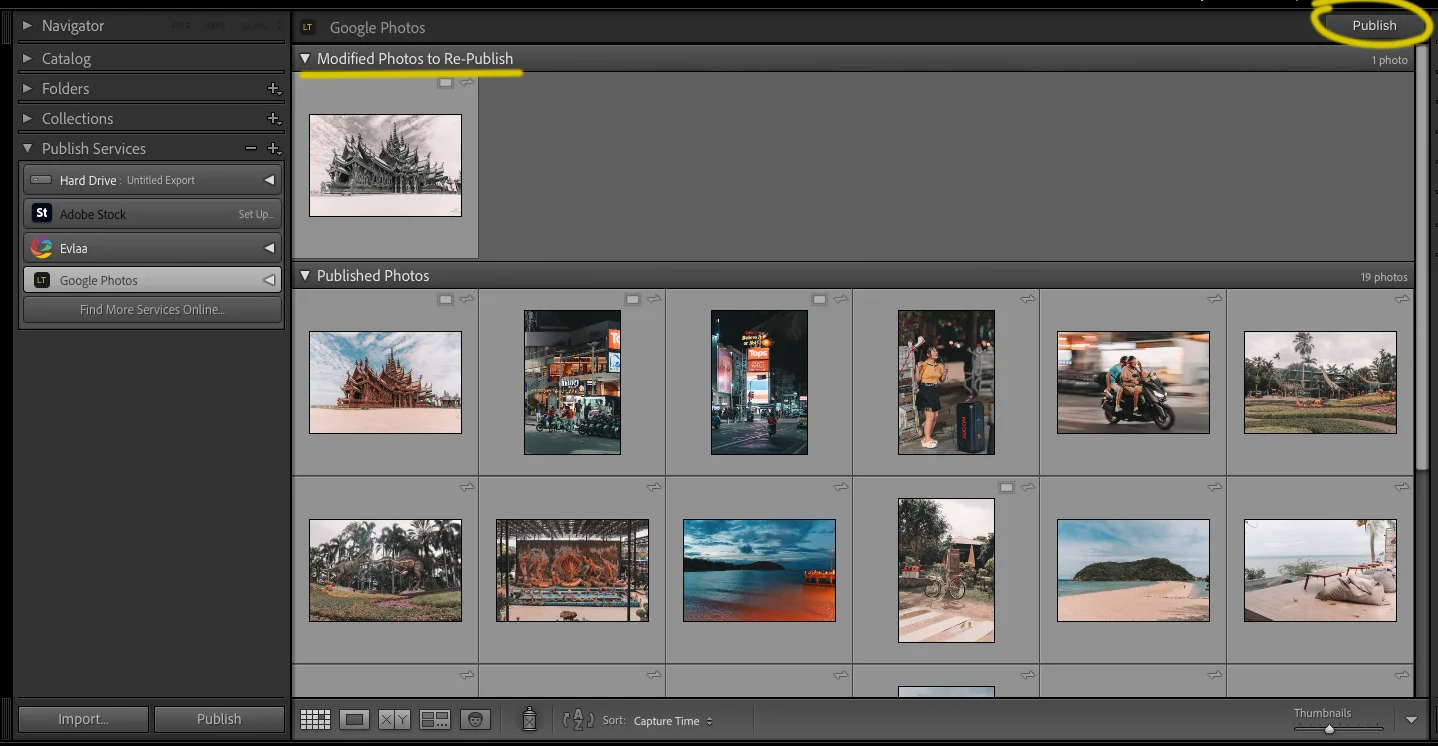
Here's the thing most people miss: the Deleted queue is separate on purpose. Lightroom can tell a plugin "these photos were removed," but it's the plugin's job to decide what to do about it. Some destinations support deletion. Others - like Google Photos, which has no delete API for third-party apps - have to route removed photos to a "To Delete" album so you can review before anything is permanently gone.
This separation of state from action is what makes the architecture flexible enough to support wildly different destinations through the same Lightroom UI.
What Publish Services Come Built-In, and What Can Plugins Add?
Lightroom Classic ships with two built-in Publish Services:
- Hard Drive - keeps a local folder in sync with a Publish Collection
- Adobe Stock - for photographers contributing to the stock library
That's the full list. For anything else - Google Photos, SmugMug, 500px, your own server - you need a plugin.
Plugins implement the same SDK interface that the built-in services use. From Lightroom's perspective, a plugin's Publish Service is indistinguishable from a native one: same panel, same state machine, same Publish button. The plugin just decides how to translate each state into API calls against its specific destination.
So when you're evaluating a publish plugin, what you're really evaluating is how well it handles the edge cases the SDK exposes - batch limits, rate limiting, error recovery, and what to do with deleted photos.
How Do I Set Up and Use a Publish Service Step by Step?
- Open the Library module in Lightroom Classic.
- In the left panel, scroll down to Publish Services.
- Click Set Up next to a built-in service, or install a plugin first via File > Plug-in Manager, then click Add.
- Configure the service (destination folder, album name, API credentials) and click Save.
- Drag photos from your library into a Publish Collection under that service.
- Click Publish to send New and Modified photos to the destination.
After that first publish, your workflow is just: keep editing in Lightroom. When you're ready to sync, click Publish. Only the photos that actually changed since your last publish go out.
Publish Services vs. Export Presets vs. Sync - Which Should You Use and When?
| Workflow | Best Tool | Why |
|---|---|---|
| One-time file delivery (client, print) | Export | No persistent state needed |
| Ongoing portfolio or shared album | Publish Service | Automatically tracks what changed |
| Editing across multiple devices | Lightroom (cloud) | Cloud-native - different product from Classic |
| Local folder backup | Publish Service (Hard Drive) | Easier long-term than repeated manual exports |
| Google Photos sync | Publish Service plugin | Only way to keep edits flowing out automatically |
One clarification that trips people up: Lightroom Classic and Lightroom (the cloud version) are separate products. Classic doesn't automatically sync to the cloud - you need Publish Services or the optional cloud sync add-on for that. If you're a Classic user wondering why your Google Photos library never reflects your edits, this is why.
Keep Your Google Photos Library in Perfect Sync with Your Lightroom Catalog
I built the Google Photos plugin for Lightroom Tools specifically because the built-in Publish Services don't reach Google Photos - and manually exporting edited photos and re-uploading them is genuinely awful at any scale.
The plugin wires directly into the Publish Services SDK. Your Google Photos albums show up as Publish Collections in Lightroom's left panel. Edit a photo, click Publish, and the updated version goes to Google Photos automatically. No drag-and-drop, no export dialog, no hunting for the right album.
The deleted-photo problem I mentioned earlier? The plugin routes removed photos to a "To Delete" album in Google Photos rather than silently disappearing them - because Google's API doesn't allow programmatic deletion from a user's library. You stay in control of what actually gets removed.
Google Photos is not the only destination worth automating this way. The same Publish Service approach powers our Google Drive plugin for full-resolution, off-site backups, and it runs through the rest of our organizing and publishing plugins.
Shoot with a dedicated camera and edit in Lightroom Classic? Keep your Google Photos library current without the manual export dance.
Get the Google Photos Plugin - $19