FIELD MANUAL - FOLDER MIRROR
Folder Mirror - Setup & Usage Guide
Everything you need, in plain English. No tech-speak.
ON THIS PAGE
- 1. Before you start
- 2. Easy start - your first 10 minutes
- 3. The full workflow - Set up, Publish, Change, Publish again
- 4. Every setting and menu item, explained
- 5. Switching from another plugin
- 6. Tips for the best results
- 7. Real-world scenarios
- 8. Frequently asked questions
- 9. Troubleshooting
- 10. Need help?
Email [email protected] and a real person answers - usually within a day. No question is too small, and setup questions are the ones we most like getting. You can also use the contact form.
1. Before you start
What Folder Mirror does
Folder Mirror keeps a second set of your photos in a folder of your choice. That can be a backup drive, a network drive, or a Dropbox, OneDrive, Google Drive or iCloud folder on your computer. The copies sit in the same folders you see in Lightroom's Folders panel. A photo in Family Scans > 1950s > Paris lands in Family Scans/1950s/Paris on the drive.
The copies are finished files with your edits baked in, in the format and size you choose. And they stay up to date:
- Edit a photo and the next Publish replaces its copy.
- Add GPS, a caption or keywords and the photo's copy gets them too. (A video's copy stays as the camera made it - Lightroom writes none of these into a video.)
- Move a photo or rename a folder in Lightroom and the copy moves with it. Nothing is rendered again.
- Remove a photo and its copy goes to the Trash.
- Photos that did not change are skipped. A Publish over thousands of unchanged photos takes about a minute.
It works as a Publish Service, so the mirror stays in sync. It also shows up in the Export dialog, for a one-off export that keeps your folders. Why Lightroom's own Export dialog can't do this is explained in how to export from Lightroom Classic and keep your folder structure.
What you need
- Adobe Lightroom Classic. The cloud-based "Lightroom" (previously Lightroom CC) is not supported.
- A Mac or a Windows PC. It is a pure Lightroom plugin: no extra program, no downloads after install.
- A place for the mirror with enough free space. A drive formatted exFAT or APFS works on a Mac. A drive formatted for Windows (NTFS) is read-only on a Mac - see Troubleshooting.
- The plugin zip and your license key from your purchase email.
Install
- Unzip the download. You get a folder called
folder-mirror.lrplugin. - Move it somewhere permanent, like Documents. Lightroom loads it from there every time, so don't delete it later.
- In Lightroom Classic, open File > Plug-in Manager and click Add.
- Pick the
folder-mirror.lrpluginfolder. Folder Mirror appears in the list as installed and running.
Activate your license
The license field is not in the Plug-in Manager. It lives at the top of the Folder Mirror settings, in a section called License. You reach it when you set up the service (Easy start, step 2), or any time later by right-clicking the service and choosing Edit Settings.... The same section also appears when you use Folder Mirror from the Export dialog.
- Paste the key from your purchase email into License key.
- Click Activate. The line below turns green and says Licensed to and your name.
One license works on two computers. Activation needs an internet connection for a moment. After that the plugin keeps working offline.
2. Easy start - your first 10 minutes
Six steps, from zip file to a mirrored folder on your drive.
- Install the plugin as described above.
- Select any photo in the Library, then find Folder Mirror in the Publish Services panel on the left and click Set Up.... In the License section, paste your key and click Activate. (Selecting a photo first lets the dialog show you where its copy will go.)
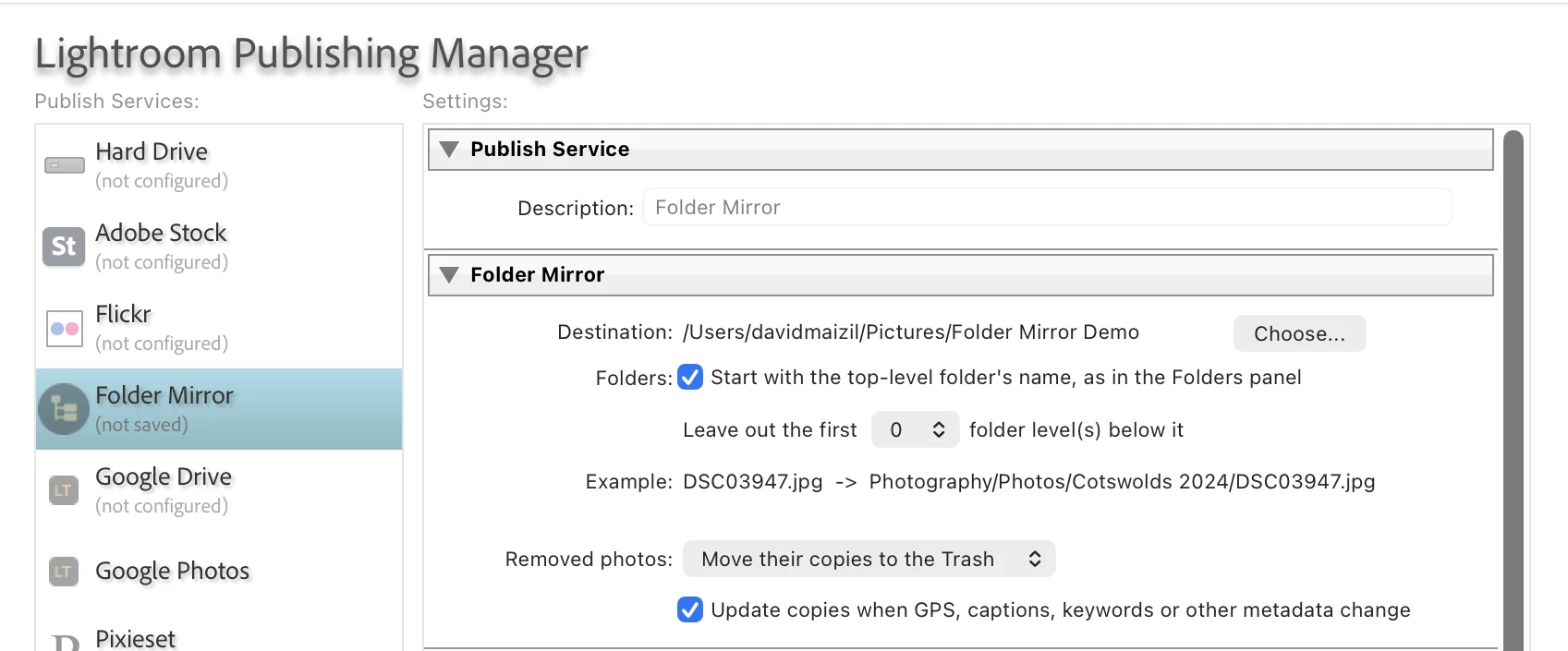
- Choose the destination. In the Folder Mirror section, click Choose... next to Destination and pick an empty folder - for example a new folder on your backup drive. The Example line now shows your photo's name and the folder its copy will land in. Pick the format and size in the File Settings and Image Sizing sections further down, then click Save (it stays greyed out until a destination is chosen).
- Add some photos. The new service has a collection called Mirror. Click a folder in the Folders panel, select its photos, and drag them onto Mirror.
- Click Publish. When it finishes, open your destination in Finder or File Explorer. You see the same folders as in your Folders panel, with a copy of each photo inside.
- Edit one of those photos in the Develop module, go back to the Mirror collection and click Publish again. Only that photo is rendered, and its copy is replaced in place.
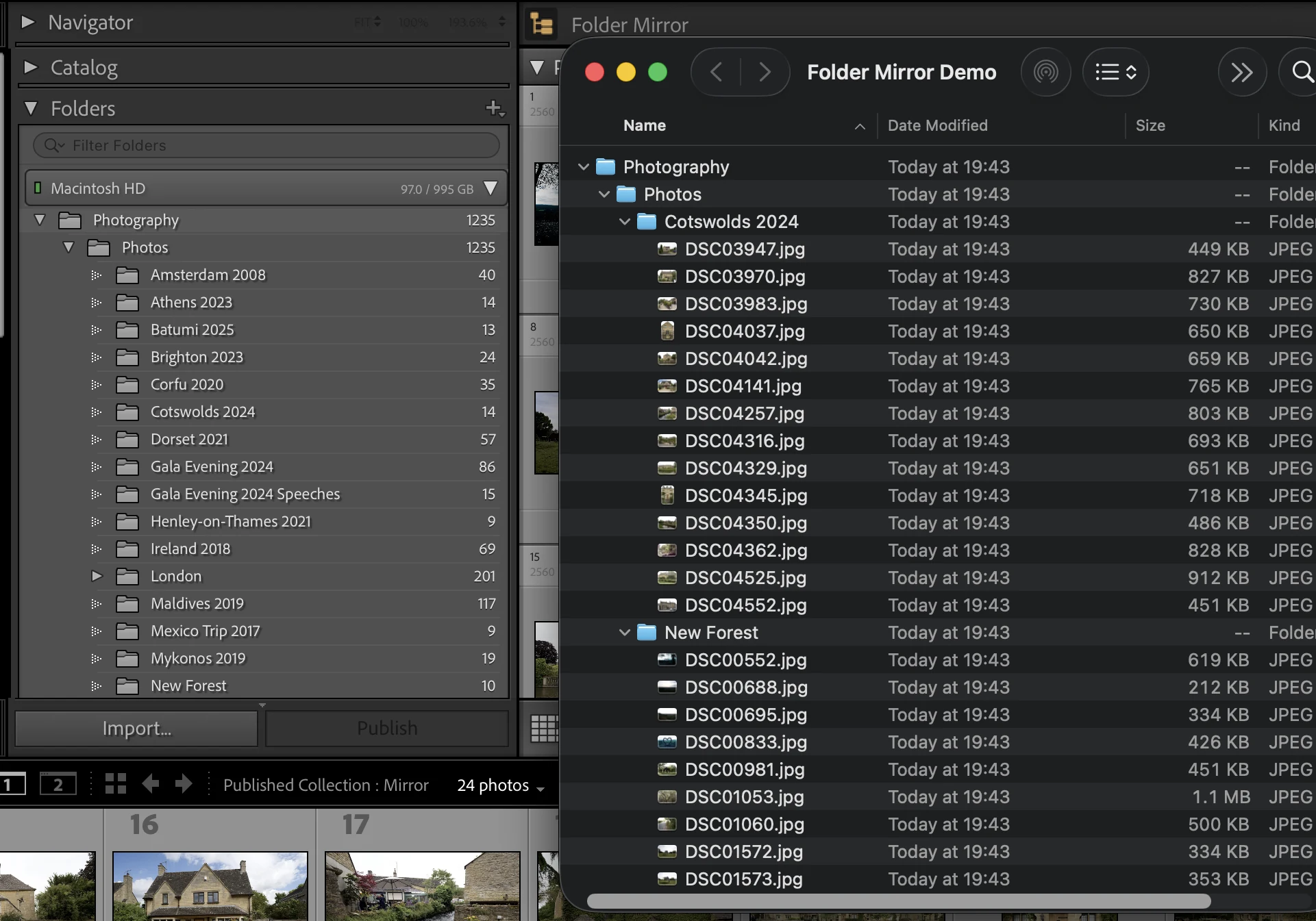
That's it - your folders are mirrored, and from now on one click of Publish keeps them current.
3. The full workflow - Set up, Publish, Change, Publish again
You set the mirror up once. After that it is a short loop.
Set up → Publish → Change things in Lightroom → Publish again → Check mirror now and then
3.1 Set up - one service per mirror
A Folder Mirror service is one destination with one folder layout and one set of file settings. Want full-size copies on a backup drive and small JPEGs in Dropbox? Set up two services. Each keeps its own mirror.
Inside a service you can make as many published collections as you like. They all write into the same mirror, each photo in its own folder. A photo that sits in two collections gets one copy, not two.
3.2 Publish - the first run
Drag photos into a collection and click Publish. Lightroom renders each photo, and Folder Mirror puts the file in the matching folder. The first time you publish into an empty folder, the plugin also leaves a small hidden file called .folder-mirror there. It marks the folder as the plugin's own. Leave it in place.
Files keep the photo's own name. Two photos that would share a name - say scan0001.tif and scan0001.png in one folder - become scan0001.jpg and scan0001-2.jpg. A virtual copy gets its copy name in brackets, like IMG_1 (Copy 1).jpg. Once a copy has a name, it keeps it.
A big first publish takes a while. In our tests, 5,000 small JPEGs took about 14 minutes. Full-size files take longer. You can keep working in other apps while it runs - in our tests Lightroom published just as fast in the background as in front.
3.3 Change - work in Lightroom as usual
You don't do anything special. Folder Mirror notices these changes and lists the photos under Modified Photos to Re-Publish:
- Develop edits. Lightroom marks the photo right away.
- Metadata - GPS, title, caption, keywords, location, capture date, creator, copyright. Marked right away, as long as the metadata box in the settings is ticked (it is by default).
- Moving a photo, renaming it, or renaming a folder in Lightroom. Lightroom does not report moves itself, so Folder Mirror checks every few minutes and marks the moved photos. Want it right now? Run Folder Mirror: Check mirror....
- Removing a photo from a collection. It moves to Deleted Photos to Remove.
Star ratings, flags and color labels never mark a photo.
3.4 Publish again - only what changed
Click Publish. Before Lightroom renders anything, Folder Mirror sorts each photo into one of three groups:
- Changed - rendered again, and the new file replaces the old copy.
- Only moved - the existing copy is moved to its new folder. No rendering, so even a big folder rename is quick. In our tests, 496 copies moved in about 30 seconds. Empty folders left behind are removed.
- Unchanged - skipped. Lightroom sometimes marks photos that did not really change. Those finish without being rendered.
Removed photos are handled in the same click: their copies go to the Trash (Recycle Bin on Windows), unless you picked another option in the settings.
3.5 Check mirror - when the disk and Lightroom disagree
Lightroom's idea of what is published is not always what is on the drive. A sync app or a person may delete a copy. A publish may be cut short. Folder Mirror: Check mirror... compares the two. Missing copies go back in the queue, and files no photo owns are listed. Run it after anything unusual, or once in a while. It is quick - about 12 seconds over 5,000 copies in our tests.
4. Every setting and menu item, explained
The Folder Mirror settings
Open them with Set Up... in the Publish Services panel, or right-click the service and choose Edit Settings.... The plugin adds three sections at the top. Below them are Lightroom's usual sections: File Settings, Image Sizing, Output Sharpening, Metadata and Watermarking. Those decide what the copies look like.
Destination
The folder the mirror goes in. Click Choose... to pick it. Use an empty folder, or one Folder Mirror already uses. The plugin refuses a folder that holds your photos (or sits above one) and a folder above your catalog, so a copy can never replace an original. A folder beside your photo folders is fine - a mirror folder next to Pictures inside the same Dropbox, say.
Folders: Start with the top-level folder's name, as in the Folders panel
On (the default), each copy's path starts with the name of its top-level folder in the Folders panel - Family Scans/1950s/Paris. Off, that name is dropped - 1950s/Paris. Leave it on if your Folders panel has more than one top-level folder, so they don't merge into one tree.
Leave out the first ... folder level(s) below it
Drops folder levels just under the top-level folder. With 1, Family Scans/1950s/Paris becomes Family Scans/Paris. Most people leave this at 0.
Example
Shows the photo you had selected and where its copy will go, for example scan0001.tif -> Family Scans/1950s/Paris/scan0001.jpg. It updates as you change the settings above. If no photo was selected, it asks you to select one - close the dialog, select a photo, and open it again.
Removed photos
What happens to a copy when its photo leaves the mirror:
- Move their copies to the Trash (the default) - recoverable until you empty the Trash.
- Delete their copies - gone for good.
- Leave their copies in the folder - the mirror only ever grows. Good for an archive you never want shrunk.
Update copies when GPS, captions, keywords or other metadata change
Ticked (the default), a metadata change renders the copy again so the new details are inside the file. Untick it if only the pictures matter to you and you'd rather not re-render after keywording sessions. GPS goes into the copies only while Lightroom's Metadata > Remove Location Info is unticked - a new Folder Mirror service starts with it unticked. Videos are never copied again for a metadata change: Lightroom writes none of it into a video.
License
Paste your key and click Activate. To move the license to another computer, click Deactivate here first.
Plugin Update
Says whether a newer version is available. If one is, Download Update opens it in your browser. The plugin checks once a day. This never touches your photos.
Right-click menus in the Publish Services panel
These are Lightroom's own commands, and they work as they do for any publish service.
- Create Published Collection... on the service - another collection writing into the same mirror.
- Create Published Smart Collection... on the service - photos join by rule, so new imports that match are mirrored on the next Publish.
- Edit Settings... on the service - the settings above. When you save a change, Lightroom asks whether to republish everything. If the change does not affect the pictures (a new destination, say), choose Leave As-Is. If you choose to republish, unchanged photos are still skipped.
- Delete on a collection - its copies stay on the drive unless you say otherwise: Folder Mirror asks, and Keep Them is the default. Copies another collection still uses are always kept.
Library > Plug-in Extras
Folder Mirror: Check mirror...
Compares every Folder Mirror service with its folder on disk. Use it after a sync app deleted files, after a publish was interrupted, or any time you want to be sure. It reports:
- Missing copies - those photos go back under Modified Photos to Re-Publish. Click Publish to write them again.
- Photos moved or renamed in Lightroom - marked, so the next Publish moves their copies.
- Files that belong to no photo - listed by name. Nothing is removed unless you click Move Them to the Trash. Leave Them is the default. They only ever go to the Trash, never deleted outright.
- Everything matches. - when there is nothing to do.
Folder Mirror: Import from another publish service...
Moves you over from Jeffrey Friedl's Folder Publisher, Lightroom's own Hard Drive service or a similar plugin, without rendering anything again. See Switching from another plugin for the steps.
Folder Mirror: Re-render selected photos
Because Folder Mirror skips photos that did not change, a copy is only rendered again when something changed. This command forces it. Select the photos and run it, and they go under Modified Photos to Re-Publish. Click Publish. Use it when a copy looks wrong, or when you changed a copy on disk and want Lightroom's version back.
Export mode - a one-off export that keeps your folders
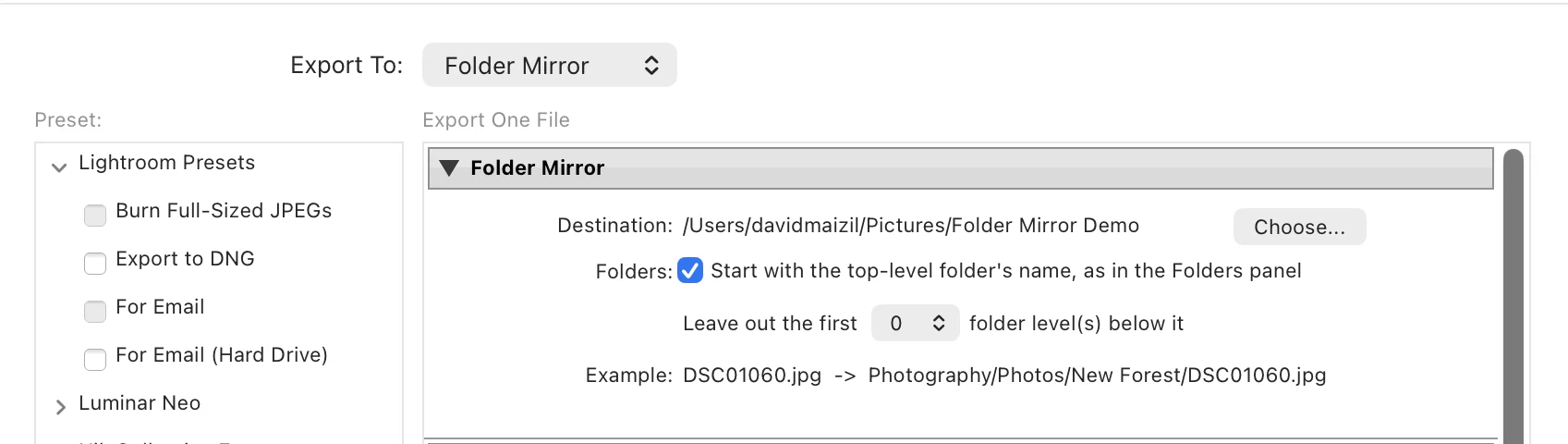
Choose File > Export... and pick Folder Mirror at the top of the dialog. You get the same Folder Mirror section: choose a destination and the folder layout, then export. The files land in the same folder tree as your Folders panel. Nothing is kept in sync afterwards - it is a plain export.
If files with the same names are already there from an earlier export, Folder Mirror asks once per export. Keep Both (the default) saves the new files beside the old ones with -2, -3 names. Replace Them moves the old files to the Trash first.
5. Switching from another plugin
Already have a mirror made by another plugin? Don't render it all again. Import takes over the existing files in minutes. It works with Jeffrey Friedl's Folder Publisher and with Lightroom's own Hard Drive publish service.
Folder Publisher is Jeffrey Friedl's plugin. Lightroom Tools is not affiliated with him. If his plugin does what you need, there is no reason to switch.
Step by step
- Set up a Folder Mirror service that uses the same folder your old service writes to. When you save, Folder Mirror says the folder holds files it did not write. That is expected - click OK. Don't click Publish on the new service yet.
- Choose Library > Plug-in Extras > Folder Mirror: Import from another publish service.... Pick your old service under Import from and the new one under Into, then click Continue.
- If it asks you to change a setting, do it. Folder Mirror checks how your existing copies are arranged. If they follow a different layout, it tells you exactly which setting to change. Change it, then run Import again. If the copies follow no single layout, it offers Keep Them Where They Are. Existing copies stay put, and new photos follow Folder Mirror's layout.
- Read the summary. It says how many photos were registered as published, with nothing rendered. Photos the old service had marked as modified stay marked.
- Click Publish on the new service. Only the marked photos are rendered.
Import copies your old service's collections, collection sets and smart collection rules. It keeps the file names your old plugin used. The old service itself is not changed. A copy that cannot be registered is simply rendered again on the first Publish - nothing is lost.
Retiring the old service safely
Both services now point at the same files, so never click Publish on the old one again. It would write its own versions over the mirror.
- Folder Publisher: turn its plugin off in File > Plug-in Manager before you delete its service. In our tests, deleting its service left every file in place. Turning it off first is the safe order anyway.
- Lightroom's Hard Drive service: the simplest choice is to leave it in the panel and stop using it.
6. Tips for the best results
- Start with one folder. Mirror a few hundred photos first and look at the result on disk. Then add the rest.
- You can work in other apps during a big publish. In our tests Lightroom published just as fast in the background as in front. If it looks frozen, see A big publish looks frozen in Troubleshooting.
- Mirror a large library in parts. Add one year or one top-level folder at a time, then Publish. Each run finishes in a reasonable time, and you can stop between runs.
- Use an empty folder for a new mirror. Don't point Folder Mirror at a folder full of other files. For copies another plugin made, use Import instead.
- Leave the
.folder-mirrorfile alone. It tells the plugin the folder is its own. Without it, Folder Mirror stops removing anything there, to be safe. - Don't edit the copies on disk. They belong to Lightroom. The next time that photo changes, its copy is replaced. Edit the photo in Lightroom instead.
- Keep the destination near the top of the drive. Some Windows programs cannot open files whose full path is longer than about 240 characters. Folder Mirror warns you after a Publish if a copy's path is longer than that.
- Moved the mirror to a new drive? Copy the whole folder (hidden files included), then point the service's Destination at it. The plugin finds its copies there.
- Two layouts? Two services. One service has one folder layout and one size. A second service is the way to get a different one.
7. Real-world scenarios
Three common ways to use Folder Mirror.
Family archivist - 23,000 scans in thousands of folders, moving off Folder Publisher
You have spent years scanning family photos into a deep tree of folders by decade, place and event. Folder Publisher has been keeping a JPEG copy of all of it on a backup drive. You add GPS to old scans, and the copies should pick that up.
How to approach it:
- Connect the backup drive. Set up a Folder Mirror service pointed at the folder Folder Publisher writes to. Keep the metadata box ticked.
- Run Folder Mirror: Import from another publish service... and follow the steps in Switching from another plugin. Every existing copy is taken over without rendering it.
- Turn Folder Publisher off in the Plug-in Manager.
- From now on, add GPS or captions as usual, then click Publish. Only the photos you touched are rendered again, with the new details inside.
What to expect: no days of re-rendering - the copies on the drive stay where they are. Renaming a folder of scans later moves the copies without rendering them either.
Hobbyist with a 40,000-photo library - full-size backup plus phone-sized copies for the family
You want two things: finished full-size JPEGs of everything on a backup drive, and small copies in a Dropbox folder the family can browse by year.
How to approach it:
- Set up the first service with the backup drive as Destination and full-size JPEG in Image Sizing.
- Set up a second service with a folder inside your Dropbox folder as Destination, and a long edge of 2048 pixels.
- Fill each service's collection one year at a time and Publish. Or select a batch in the collection, hold Option (Alt on Windows) and click Publish Selected.
- After that, one Publish on each service keeps both mirrors current after an editing session.
What to expect: Dropbox uploads whatever Folder Mirror writes, so the family always sees the latest edits. Photos you remove go to your computer's Trash, and Dropbox follows.
Event photographer - 600 finals in a dozen folders, one-time delivery on a USB stick
You delivered a wedding with folders for each part of the day - ceremony, portraits, reception. The couple wants the same folders on a USB stick. Nothing needs to stay in sync.
How to approach it:
- Select the 600 finals and choose File > Export....
- Pick Folder Mirror at the top of the Export dialog and choose a folder on the USB stick as Destination.
- Set the file settings you deliver with and click Export.
What to expect: the stick holds the same folder tree as your Folders panel, with your edited JPEGs inside. That saves a dozen separate exports, one per folder.
8. Frequently asked questions
Setup
Where do I enter my license key?
In the Folder Mirror settings, not in the Plug-in Manager. Click Set Up... next to Folder Mirror in the Publish Services panel, or right-click the service and choose Edit Settings.... The License section is at the top.
Does it work on Windows?
Yes, Folder Mirror runs on Mac and Windows. Install and activation are the same on both. On Windows, removed copies go to the Recycle Bin.
Can I use it with Dropbox, OneDrive, Google Drive or iCloud?
Yes. Pick a folder inside your synced folder as the Destination. Folder Mirror writes the files, and your sync app uploads them like any others. The copies must not sit inside the folders that hold your Lightroom photos.
Can I mirror to a network drive (NAS)?
Yes, any folder you can reach from Finder or File Explorer works. One difference: most network drives have no Trash. There, copies of removed photos are deleted outright, and Check mirror leaves stray files for you to delete yourself.
How do I mirror my whole library?
Add all your photos to a collection in the service - a folder or a year at a time works best for a big library. A published smart collection works too: new photos that match its rules are mirrored on the next Publish.
Publishing and staying in sync
If I edit a photo, do I get a second copy?
No. The new file replaces the old copy in the same place, with the same name.
I moved photos to another folder in Lightroom. Will everything render again?
No. Within a few minutes the moved photos show under Modified Photos to Re-Publish. Publish moves their copies to the new folder without rendering them. The same goes for renaming a folder or a file.
Why did photos show as Modified and then go back to Published on their own?
Lightroom sometimes marks photos that did not really change. Every few minutes Folder Mirror checks those photos. If nothing in the copy would change, it clears the mark for you.
The number next to Mirror never goes down. Is something stuck?
No. That number is how many photos the collection holds - your whole mirror - not a queue of work. It grows as you add photos and never resets after a Publish. Each Publish writes only the new and modified photos; the rest keep their copies.
My original is on a drive that is not connected. What happens?
Folder Mirror leaves that photo out and lists it after the Publish. It never makes a copy from a smaller Smart Preview. The photo stays queued, so connect the drive and Publish again.
Does it publish videos?
Yes. Videos go into the mirror like photos, in the same folders. Lightroom does not write GPS, captions or keywords into a video copy, so changing those never makes Folder Mirror copy a video again.
What happens to raw files?
The copy is whatever format you choose in File Settings - usually JPEG - with your edits applied. Your raw files are never touched.
Why do some file names end in -2?
Two photos in one folder would have had the same name - for example a TIFF and a PNG of the same scan, both copied as JPEG. The second one gets -2. A file Folder Mirror did not write is never replaced, so a name already taken by another file also gets -2.
Removing and safety
I removed a photo but its copy is still there. Why?
Removing a photo from a published collection only lists it under Deleted Photos to Remove. Click Publish and the copy goes to the Trash.
Can Folder Mirror ever delete my originals?
No. It refuses a destination that overlaps your Lightroom photos or catalog. Before it replaces, moves or removes any file, it also checks that the file is not a Lightroom original. It only works inside the folder you chose.
A photo is in two collections. If I remove it from one, does its copy go?
No. The copy stays as long as any collection in the service still holds the photo.
What is the hidden .folder-mirror file?
A small marker the plugin leaves in its destination. It tells Folder Mirror the folder is its own, so it may remove and replace copies there. Leave it in place. If it got deleted, the next Publish asks before using the folder again. Choose Use This Folder if it is your mirror.
Switching from another plugin
I have years of copies made by Folder Publisher. Do I have to render them again?
No. Use Folder Mirror: Import from another publish service.... It takes over the existing files and keeps their names, with nothing rendered. See Switching from another plugin.
Can I keep using my old plugin next to Folder Mirror?
Yes, for other folders. Just never publish both services into the same folder. After an Import, turn the old plugin off or stop using its service.
License and support
How many computers can I use my license on?
Two. Moving to a new computer? Click Deactivate in the License section on the old one first. Lost access to the old machine? Contact us and we'll free the slot.
Does it need the internet?
Only for a moment, to activate. After that it works offline. It checks for updates once a day when it can. Your photos never leave your computer, except into the folder you chose.
I lost my license key. How do I get it back?
It is in your purchase receipt email from LemonSqueezy. Can't find it? Contact us with the email you bought with and we'll look it up.
Can I get a refund?
Yes - 30-day money-back guarantee. Email support within 30 days of purchase and you get a full refund.
9. Troubleshooting
License
"Folder Mirror needs a license key."
Publish or Export stopped before writing anything. Right-click the service, choose Edit Settings..., and activate your key in the License section at the top. In the Export dialog, the same section is at the top too.
"License activation failed"
- The key has reached its activation limit - it is active on two computers already. Deactivate it on one of them, or contact us for a reset.
- "That key belongs to a different Lightroom Tools product" - you pasted the key from another plugin's email. Look for the Folder Mirror receipt.
- "Network error" - check your internet connection and try again.
The destination
"The folder for the copies is not reachable"
The drive with the mirror is not connected, or a network drive is not mounted. Connect it and click Publish again. Folder Mirror never recreates the mirror somewhere else, like your system disk. Removals wait too: those photos stay under Deleted Photos to Remove until the drive is back.
"The folder for the copies does not exist - Create it now?"
The drive is there, but the folder is not. Click Create Folder for a new mirror. If you expected the folder to be there, click Cancel and check the drive - maybe it was renamed.
"Could not write to the folder ... Is the drive read-only?"
A Mac can read a drive formatted for Windows (NTFS) but cannot write to it. Use a drive formatted exFAT (works on Mac and Windows) or APFS (Mac only). Or install an NTFS driver.
"The folder for the copies overlaps your Lightroom photos or catalog"
The destination is inside, or contains, a folder Lightroom keeps originals or the catalog in. Folder Mirror will not write there. Choose a separate folder, such as a new folder next to them.
"This folder already holds other files"
You pointed a new service at a folder that is not empty. Best: click Choose Another Folder and pick an empty one. Copies made by Folder Publisher or another plugin? Click Cancel and use Import instead. Choose Use This Folder only if you are sure.
Publishing
A big publish looks frozen
It is almost certainly working. Lightroom shows one progress bar for the whole run, so watch the destination folder instead: new copies keep appearing in it. A first publish of a big library can take an hour or more. To work in smaller steps, select a batch in the collection, hold Option (Alt on Windows) and click Publish Selected.
"... photo(s) were left out because their original file is not reachable"
Those originals are on a drive that is not connected. They were not made from a Smart Preview, and they stay queued. Connect the drive and Publish again.
"... photo(s) could not be written"
Lightroom lists them right after. They stay queued, so Publish again retries only those. A full drive is the most common cause.
"... copy(ies) have a path longer than 240 characters"
Those copies are fine on a Mac, but some Windows programs cannot open them. Choose a destination closer to the top of the drive, or use Leave out the first ... folder level(s) to shorten the paths.
A copy looks wrong, or I changed a copy by hand
Select the photo and run Folder Mirror: Re-render selected photos, then click Publish.
The mirror
Files are missing from the mirror, or there are extra files
Run Folder Mirror: Check mirror.... Missing copies are queued again, and extra files are listed. You decide whether they go to the Trash.
Files ending in .fm-new, .fm-old, .fm-move or .fm-probe
Leftovers from a publish that was interrupted, for example by quitting Lightroom. Check mirror reports them but never removes them. Delete them in Finder or File Explorer while Lightroom is not publishing.
"The copies of removed photos were left alone"
Folder Mirror would not remove anything because the mirror folder is not reachable, overlaps your Lightroom photos, or holds files it did not write. The message says which. Fix that, then click Publish - the photos are still waiting under Deleted Photos to Remove.
Sending us the plugin's log file
If we ask for the log, it records what happened on every publish. It is in a hidden folder, so go straight to it:
- Mac: in Finder press Shift + Command + G, type
~/Library/Logs/Adobe/Lightroom/LrClassicLogsand press Return. - Windows: in File Explorer paste
%LOCALAPPDATA%\Adobe\Lightroom\Logsinto the address bar and press Enter, then open the LrClassicLogs folder.
Attach FolderMirror.log to your email.
Still stuck?
Use the feedback form or email [email protected]. Tell us what you were doing and what you saw instead.
10. Need help?
The fastest way to reach us is email: [email protected]. A real person reads every message and replies, usually within a day. You can also use the contact form or the feedback form. A screenshot of the message you saw always helps.
THE PLUGIN THIS MANUAL BELONGS TO Folder Mirror - $29