How to export from Lightroom Classic and keep your folder structure
Quick Answer
The Export dialog can't do it: it writes every photo into one folder, plus one subfolder you name. Exporting to "Same folder as original photo" with a subfolder keeps the structure, but inside your originals. To copy the whole Folders-panel tree to another drive and keep it in sync, use a publish plugin: Jeffrey Friedl's Folder Publisher or Folder Mirror.
Your originals live in a tree that took years to build. Photos > 2019 > 06 Lisbon > Day 2. Or Clients > Smith wedding > Ceremony. Now you want edited JPEGs of all of it on a backup drive, a laptop or the family computer, in the same tree. You select the photos, open File > Export, and Lightroom drops every one of them into a single folder.
A customer asked me for exactly this. He keeps thousands of nested folders and wanted smaller copies of every edited photo, in the same tree, on another drive, refreshed whenever he edits. So I went through every built-in way Lightroom Classic offers, then built a plugin for the part it can't do. Here is what each method actually leaves on your disk.
Why does Lightroom Classic export flatten your folders?
Because an export has one destination. The Export Location section lets you pick where (a specific folder, the same folder as the original photo, choose later, or a shortcut such as the Desktop), with an optional Put In Subfolder box that takes a single name, and a rule for files that already exist. There is no "keep the folder structure" option. The File Naming panel can't help either: its tokens build file names, not folders.
So when you export twenty folders at once, you get one folder with every file in it. Two photos called IMG_0412 from different trips? The Existing Files setting decides: Lightroom asks you, picks a new name by adding a hyphen and a number, overwrites without warning, or skips the photo. Adobe lists all four on its export help page.
Your Folders panel
- Photos
- 2019
- 06 Lisbon
- IMG_0412.CR3
- IMG_0413.CR3
- 08 Crete
- IMG_0412.CR3
- 06 Lisbon
- 2019
Export to one folder
- Exports
- IMG_0412.jpg
- IMG_0413.jpg
- IMG_0412-2.jpg
Flat. Same names collide.
Same folder as original + subfolder
- Photos
- 2019
- 06 Lisbon
- IMG_0412.CR3
- IMG_0413.CR3
- JPEG
- IMG_0412.jpg
- IMG_0413.jpg
- 08 Crete
- IMG_0412.CR3
- JPEG
- IMG_0412.jpg
- 06 Lisbon
- 2019
Tree kept, but mixed into your originals.
A folder publish plugin
- Backup drive
- Photos
- 2019
- 06 Lisbon
- IMG_0412.jpg
- IMG_0413.jpg
- 08 Crete
- IMG_0412.jpg
- 06 Lisbon
- 2019
- Photos
Same tree, on another drive, kept up to date.
Method 1: export into a subfolder next to each original
This is the best free trick, and most people don't know it works across many folders at once. The "Same folder as original photo" choice is worked out per photo, so every photo goes back to its own folder, and Put In Subfolder adds one level inside each of them.
- In the Folders panel, click the top folder of the part you want and turn on Library > Show Photos in Subfolders, so every photo underneath appears in the grid.
- Select them all (Cmd+A on a Mac, Ctrl+A on Windows) and choose File > Export.
- In Export Location, set Export To: Same folder as original photo.
- Tick Put In Subfolder and type a name, for example JPEG.
- Leave Add To This Catalog unticked, set the size and quality, and click Export.
Every source folder now has its own JPEG subfolder. The structure survived, but inside your originals: your backup of the originals now carries the JPEGs too, and getting them onto another drive in the same tree means copying them out folder by folder. It also has no memory. Edit forty photos next month and Lightroom doesn't know which JPEGs are stale.
Method 2: export one folder at a time
Select one folder, set Export To a specific folder on the other drive, tick Put In Subfolder and type that folder's name. Export. Next folder. Save the settings as an export preset with "Choose folder later" so each round is only a destination and a name.
For five folders this is fine, and you get a clean, separate tree. For three hundred it is a weekend, you rebuild the nesting by hand, and nothing updates when you edit.
Method 3: Lightroom's own Hard Drive publish service
Publish services fix the memory problem. Lightroom keeps a link between each photo and its copy: new photos wait under New Photos to Publish, edited ones move to Modified Photos to Republish, and photos you remove are deleted from the folder on the next Publish. Adobe describes the queues on its Hard Drive publishing page. If you're new to them, my guide to publish services covers the basics.
The structure part is weak, though. Each published folder you create becomes a folder on disk, but you create and fill every one of them yourself, and the service never reads your Folders panel. An expert on Adobe's own forum called it "a flat (one level) publishing feature." It's perfect for "Instagram", "Print lab" and "Client picks". It's the wrong tool for a 2019 > 06 Lisbon > Day 2 tree.
Method 4: Jeffrey Friedl's Folder Publisher
This is the plugin forum regulars have pointed people to for over a decade. A Lightroom Queen thread from 2014 asks this exact question, and the answer is Folder Publisher. It's a publish service that copies your photos into a tree matching the Folders panel, starting at a folder you choose, and refreshes that tree for new, changed and removed photos every time you Publish. One download works on Mac and Windows. It can export from Smart Previews when a drive is offline, it has its own file-renaming tokens, and it can FTP the tree to a server.
It's donationware. From Friedl's own page: free to use forever, with reduced functionality after six weeks unless you register, and registering costs as little as one cent through PayPal. He also notes that a major Lightroom upgrade (Lr10 to Lr11, for example) de-registers it, so you register again in the new version. The current release is build 20231011.129.
Two tips from his comment threads apply to any big folder publish. Lightroom renders a publish into one temporary folder and renames same-named files there, so if you want the original names, he suggests his Enhanced File Renaming with the {LibraryFilename} token. And for a huge first run, hold Alt or Option to turn Publish into Publish Selected and go in batches of around 10,000.
Folder Publisher is Jeffrey Friedl's own independent work. Lightroom Tools is not affiliated with him.
Method 5: Folder Mirror
Folder Mirror is the plugin I built for that customer. It is a publish service, and also an Export destination for a one-off export with folders. You pick a destination folder - a backup drive, a laptop folder, a folder Dropbox or OneDrive syncs - and every photo you publish lands in the same tree as your Folders panel. One checkbox starts the tree with the top-level folder's name, and a menu leaves out the first few folder levels below it. The settings show a live example path for the photo you have selected, so you see the result before anything is written.
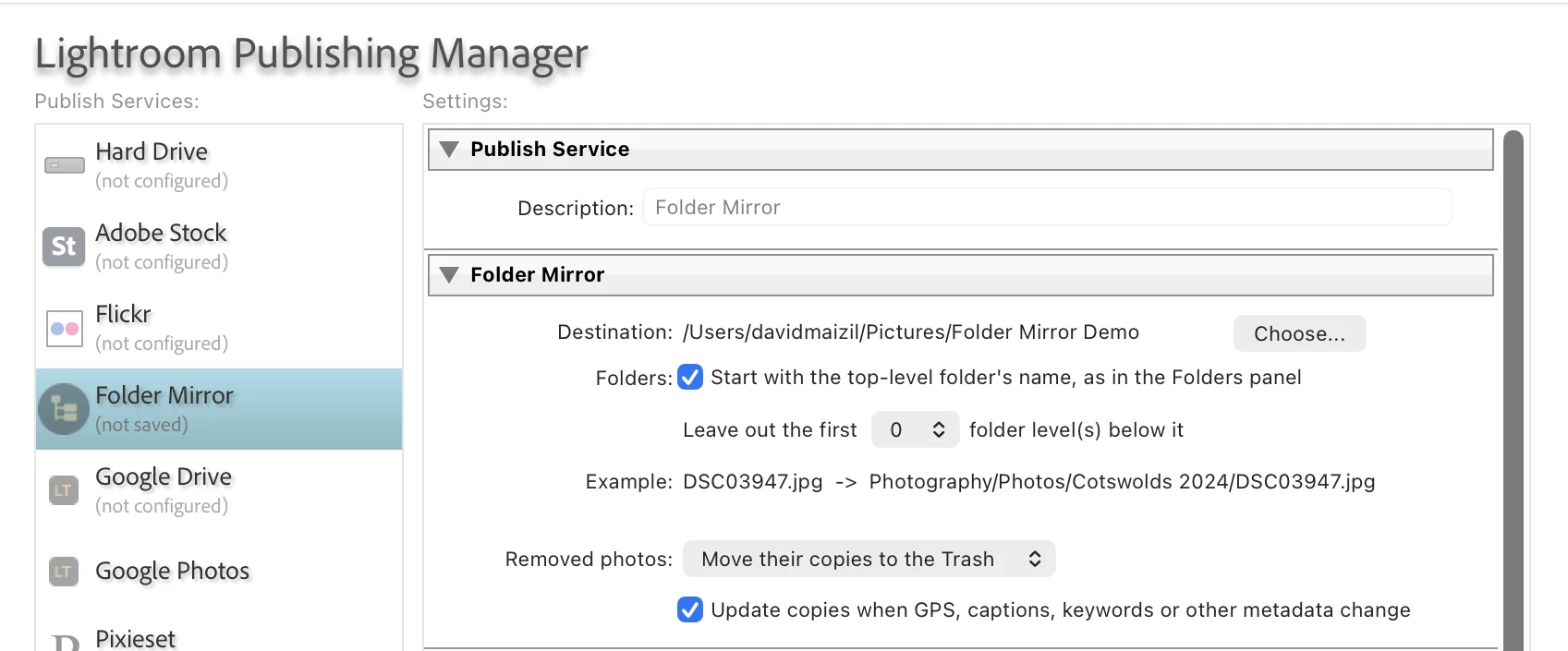
To fill it, drag photos into its Mirror collection, or make a published smart collection with a rule (five stars, a keyword, or everything since 1990). Then each Publish decides what every photo needs before it renders anything:
The fourth row matters more than it looks. Lightroom marks photos as modified when nothing visible changed - I have chased those false marks through three of my other publish plugins - so Folder Mirror checks the actual develop settings and metadata before it renders anything.
The rules that keep your files safe
- Copies keep the original file name. A virtual copy gets its copy name added, like IMG_1 (Copy 1).jpg, and two files that would share a name in the same folder get -2. Lightroom's temporary-folder renaming never reaches the mirror.
- It never writes over a file it didn't create, and it refuses a destination inside or around your photo library.
- Removed copies go to the Trash or Recycle Bin by default, and empty folders are cleaned up.
- If an original is offline, that photo waits. It is never rendered from a Smart Preview, so a small copy never quietly replaces a full-size one. More on why that matters in my Smart Previews post.
- If the destination drive isn't connected, Publish stops and tells you, instead of rebuilding the mirror on your system disk.
Two menu commands round it out. Check mirror compares the disk with Lightroom: missing copies are queued again, and stray files are listed and moved to the Trash only if you say so. Import from another publish service is for people coming from Folder Publisher or the Hard Drive service: it registers the copies already on disk as published, so nothing is rendered twice. I tested it on Folder Publisher build 129, and it kept his file names.
What it looked like on 5,000 photos
Numbers from my own test run, publishing to a second volume with Lightroom in front:
| Job | Result |
|---|---|
| First publish, 5,000 photos in 500 folders (600 px JPEGs) | 14 minutes, none failed |
| Publish again with nothing changed | 55 seconds, no files touched |
| Rename a folder of 496 photos in Lightroom, then Publish | 496 copies moved in 31 seconds, nothing rendered |
| Check mirror over 5,021 copies | About 12 seconds; found the one copy I had deleted by hand and the one stray file I had planted |
Full-size JPEGs take longer to render, and that part is Lightroom's own work. The point of the table is the second and third rows: after the first publish, you only pay for what changed.
What it doesn't do yet: FTP upload, file-name templates, a different layout per collection (one layout per service; add a second service for a second layout), or a mirror of your collections instead of your folders. It needs Lightroom Classic, not the cloud-based Lightroom app.
Which method should you use?
| Method | Keeps the tree | Separate drive | Stays in sync | Cost |
|---|---|---|---|---|
| Export to one folder | No | Yes | No | Free |
| Same folder as original + subfolder | Yes, inside your originals | No | No | Free |
| One folder at a time | Yes, by hand | Yes | No | Free |
| Hard Drive publish service | One level, built by hand | Yes | Yes | Free |
| Folder Publisher (Friedl) | Yes | Yes | Yes | Donationware, from $0.01 |
| Folder Mirror | Yes | Yes | Yes, moves and renames without re-rendering | $29 one-time |
If you need one export, once, Method 1 or 2 is enough. If Folder Publisher is registered and doing its job, keep it - I'd rather you didn't pay twice for the same tree. Folder Mirror is for a library you'll keep mirroring for years, where folders get renamed and a full re-render would take a night.
Before you mirror a big library
- Decide on the top level first. Folder plugins read the Folders panel, so if you right-click your top folder and choose Show Parent Folder, the mirror gains a level. Folder Mirror treats that change as a move rather than a re-render, but it is still easier to settle before the first run.
- On a Mac, keep Lightroom as the front window during the first big publish. macOS slows apps in the background, and I have watched it stretch a long publish from another of my plugins many times over.
- Format a backup drive you share between Mac and Windows as exFAT. A Mac can only read a drive formatted for Windows (NTFS), not write to it.
- On Windows, watch very long paths. Folder Mirror warns when a copy's path passes 240 characters, because some Windows programs can't open such files.
Folder Mirror copies your Lightroom Classic photos into the same folder tree on another drive and keeps it current: edits re-rendered, moves moved, removals in the Trash. $29 one-time, 30-day money-back guarantee.
See Folder MirrorSwitching from Folder Publisher? The Folder Mirror guide shows the import step.
Frequently asked questions
Does Lightroom Classic have a setting to keep the folder structure on export?
No. The Export dialog writes to one destination, with one optional subfolder you name. Exporting to "Same folder as original photo" with Put In Subfolder keeps the structure, but inside your original folders. A separate tree on another drive needs a publish plugin.
How do I copy my original files with their folder structure?
If you want the originals rather than edited copies, copy the folders in Finder or File Explorer, or use File > Export as Catalog with "Export negative files" ticked, which copies the originals in the structure of your Folders panel. Neither gives you edited JPEGs.
Why did my exported files get -2 at the end of the name?
Two photos with the same name landed in the same folder. In the Export dialog, the Existing Files choice "Choose a new name for the exported file" adds a hyphen and a number. Publish plugins can see it too: Lightroom renders their photos into one temporary folder and renames same-named files there, even ones from different folders, as Jeffrey Friedl explains on his plugin's page. Folder Mirror names its copies itself, so photos in different folders keep their names.
Will Folder Mirror re-export everything if I rename a folder in Lightroom?
No. It notices that the photos' place changed and moves their copies on the next Publish without rendering them. In my test, a folder of 496 photos moved in 31 seconds.
Can I switch from Folder Publisher without exporting everything again?
Yes. Folder Mirror's "Import from another publish service" copies the old service's collections and registers the copies already in its folder as published. Nothing is rendered, and the old service is left exactly as it was.
Your folder tree, on another drive, kept in sync with every edit, move and rename in Lightroom Classic.
Get Folder MirrorSetup takes a few minutes - the Folder Mirror guide walks through it.