FRAME 07 - GRADE · LIGHTROOM CLASSIC PLUGIN
Lightroom gives you one clipboard. You just got nine.
A Lightroom Classic plugin that adds nine develop-settings clipboards. Hold a portrait recipe, a landscape recipe, and a B&W at once. Load your looks in two minutes, then paste any of them onto any selection for the rest of the day. Copy once, paste everywhere.
LIGHTROOM CLASSIC 6+ · MACOS & WINDOWS · ONE-TIME PURCHASE
LOOK SLOTS - 9 OF 9 LOADED
EACH SLOT KEEPS ITS OWN COPY - RESTART-PROOF
 PASTE + 1 · YOUR LOOK 1
9 CLIPBOARDS - CLICK A SLOT TO PASTE ITS LOOK
CLICK ANY LOADED SLOT - THE PHOTO TAKES THAT LOOKLIVE DEMO
SEE IT IN ACTION
9 clipboards
in 75 seconds.
CLICK TO PLAY - 75 SECONDS, WITH SOUND, CAPTIONS ON SCREEN
Read the transcript
The video is narrated, and the narration is also captioned on screen. This is the full spoken text:
- Lightroom gives you one clipboard for develop settings. Look Slots gives you nine.
- Copy a second look, and the first is gone - so you scroll back and copy it again. All day.
- Look Slots keeps nine clipboards loaded inside Lightroom - one for every look you're working with.
- Every copy opens Lightroom's own checkbox window - every setting group, and a checkbox for every single mask.
- See what each slot holds, give them nicknames - and they're still loaded after a restart.
- Select a whole shoot and paste. Every photo takes the look in one step - and one undo brings it back.
- Even AI masks follow properly - they re-find the subject in every photo you paste onto, automatically.
- On a Mac, every slot gets its own key. Control Option to copy - add Command to paste.
- Partial copies, batch pastes, restart-proof slots - it's the clipboard Lightroom should have shipped with.
- Get Look Slots, at lightroom tools dot com. One purchase, yours forever.
FEATURES - WHAT DEVELOPS
Built for photographers who edit
in batches, not one-offs.
9 looks, loaded at once.
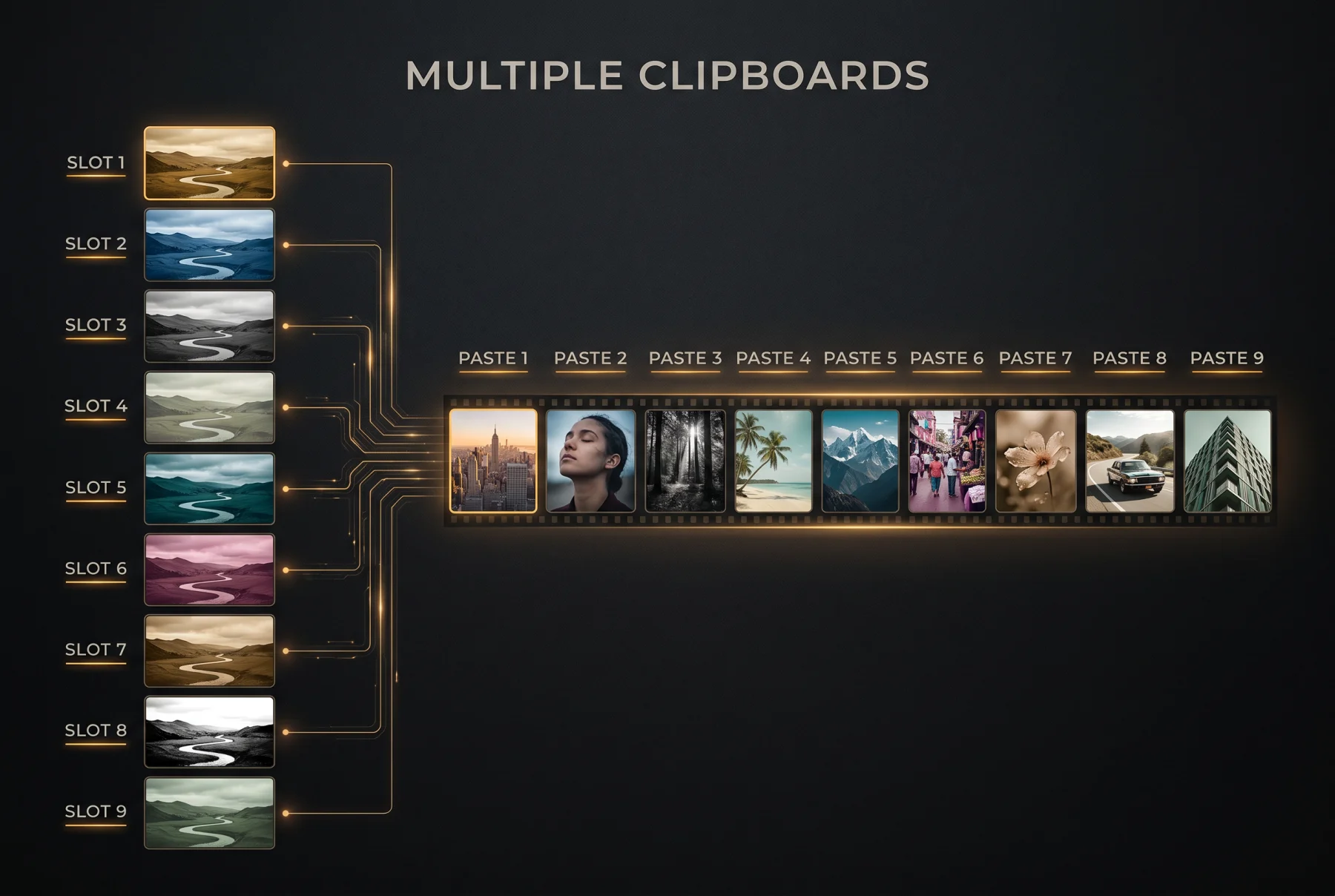
Lightroom's clipboard holds one recipe - copy a second and the first is gone. Look Slots holds nine side by side: portrait in Slot 1, landscape in Slot 2, B&W in Slot 3. Paste any of them onto any selection without ever recopying.
Copy exactly what you mean.
Every copy opens the same checkbox window you know from Lightroom's own Copy Settings - about 27 setting groups, plus one checkbox for every single mask on the photo. Your last choices are remembered, so the fast path is one Return key.
AI masks that actually follow.
Paste a look with Select Subject or Select Sky masks and they re-segment on each target photo - the mask finds the new subject instead of wearing the old one's outline. No other copy-paste tool does this.
Paste onto a hundred photos at once.
Select a whole shoot and paste - every photo takes the look in one undoable step. It skips videos on its own, and it refuses to run with nothing selected, so it can never spray settings across your filmstrip by accident.
A key for every slot.
On Mac and on Windows, a bundled config for a free helper app gives every slot its own shortcut - Ctrl+Opt+3 on a Mac copies to Slot 3, Ctrl+Alt+3 on Windows. Two-minute setup, covered in the guide. Prefer menus? They work everywhere with zero setup.
Slots survive restarts.
Close Lightroom, reopen it tomorrow - your nine slots are still loaded. The Show Look Slots window lists what each one holds, when it was copied, and from which photo. Give slots nicknames, clear the ones you're done with.
UNDER THE SAFELIGHT - WHY IT'S DIFFERENT
Your looks stay loaded. All of them.
The usual way: copy the portrait recipe, paste it on the portraits. Now the landscapes need their look - so you scroll back, find the landscape you perfected, copy again, and your portrait recipe is gone. Repeat every time the shoot switches subjects. Presets don't really fix it either: they're permanent fixtures you create, name, and file away - the wrong tool for the three working looks of today's edit, and your per-photo mask choices don't ride along.
Look Slots keeps nine clipboards loaded inside Lightroom. Copy each look once - with Lightroom's own checkbox window, down to individual masks - and paste any of them onto any selection for the rest of the day. Even AI masks come along properly: they re-segment on every photo you paste onto, so a Select Subject mask finds each new subject instead of keeping the old outline. Nothing is exported, nothing is uploaded - it all happens inside your catalog.
HOW IT WORKS - THREE STEPS
Copy once.
Paste all day.
Buy
Purchase the plugin and get your license key by email, usually within seconds. Add the plugin to Lightroom and paste the key once.
Copy
Select a photo you've perfected and copy it to a slot. Tick what to include - the whole recipe or just the parts you want, down to single masks.
Paste
Select any photos - one or a hundred - and paste from that slot. One undoable step. The slot stays loaded until you replace it.
CONTACT PRINTS - WHAT PEOPLE SAY
Copy a look once,
paste it all day.
Having nine permanent clipboards for edits is amazing. I load my main wedding looks at the start of the day and never have to scroll back to find a recipe again.
Copying just one specific mask (like skin smoothing) instead of the whole edit has completely changed my retouching workflow. It's such a small thing but it saves me hours on portraits.
I edit massive batches of real estate photos, so keeping my looks loaded in different slots across multiple days is huge. I paste my interior look onto forty shots at once and move on. Super simple but brilliant.
FAQ - BEFORE YOU INSTALL
Frequently asked
questions.
Which Lightroom versions and operating systems are supported?
The plugin works with Adobe Lightroom Classic (the desktop version) on both macOS and Windows. It is not compatible with the cloud-based "Lightroom" (formerly Lightroom CC). Any recent version of Lightroom Classic should work. For other tools built for Classic, see our best Lightroom Classic plugins roundup.
How is this different from Lightroom's built-in copy and paste?
Lightroom's built-in clipboard holds one set of settings at a time. The moment you copy a second look, the first is gone - and getting it back means finding the source photo and copying again. Our guide to the built-in ways to copy develop settings in Lightroom Classic shows where each one runs out.
Look Slots gives you nine clipboards side by side, each with its own contents, and they survive restarting Lightroom. Copy your working looks once in the morning and paste them all day.
How is this different from presets?
Presets are for keeps - you create them, name them, and file them away for months. Slots are working memory: the three or four looks you're using today, on this shoot. Copy from a photo you just perfected, paste onto the next batch, replace the slot tomorrow.
No preset panel housekeeping - and your per-photo mask selections ride along, something presets don't handle well.
If you want to know what a preset you already own actually changes, our free preset inspector reads any .xmp in the browser and lists every setting it touches.
What happens to AI masks when I paste?
They re-segment on the photos you paste onto. A Select Subject mask copied from a portrait finds the subject in each target photo instead of keeping the old outline.
With the free shortcut helper installed - on Mac or on Windows - this happens automatically right after the paste. Without the helper, you select the pasted photos and run Settings > Update AI Settings once; Lightroom does the rest.
Do I need to install anything for the keyboard shortcuts?
The menus work with zero extra setup on both platforms.
If you want a key for every slot, the plugin ships with a ready-made config for a free open-source helper - Hammerspoon on macOS, AutoHotkey on Windows. Either way it's about a two-minute setup, covered step by step in the guide.
Can pasting mess up my photos?
Every paste is one undoable step - Ctrl/Cmd+Z restores every photo it touched. Copying only reads your settings; it changes nothing.
Paste also refuses to run when no photo is selected, so it can never spray settings across your whole filmstrip by accident. Videos are skipped automatically.
And your original files are never touched. Develop settings in Lightroom are instructions, not pixel changes - pasting a look is exactly like moving the sliders by hand.
Do my slots survive restarting Lightroom?
Yes. Slots are stored in the plugin's preferences and are still loaded when Lightroom comes back up. The Show Look Slots window lists what each slot holds, lets you give slots nicknames, and clears the ones you're done with.
Can I get a refund?
Yes - 30-day money-back guarantee, no questions asked. If it is not right for you for any reason, email us within 30 days of purchase and we will refund you in full. We would rather you be happy than keep a sale. Full terms on the Terms of Service page.
Still have a question? Email [email protected] or use the contact form - a real person reads every message and replies, usually within a day. Ask before you buy; we would rather answer than have you guess.
THE PRINT - READY WHEN YOU ARE
Stop recopying
the same look.
Nine clipboards, loaded with your looks. Copy once in the morning, paste all day - straight from your catalog.
- One-time $29 - 9 slots, unlimited pastes, no subscription ever
- 30-day money-back guarantee - no questions asked
- Pure plugin - your photos never leave Lightroom
LIGHTROOM CLASSIC ON MACOS OR WINDOWS