
FRAME 05 - MIRROR · LIGHTROOM CLASSIC PLUGIN
Your edits, in your Google Drive. Always.
A Lightroom Classic plugin that publishes your Collections to Google Drive™. Each Collection becomes its own folder. Edit, re-publish, the file updates in place. Done in 1 click - without leaving Lightroom.
LIGHTROOM CLASSIC 6+ · MACOS & WINDOWS · FREE GOOGLE ACCOUNT
LIGHTROOM - "ANNA & TOM"PUBLISHED COLLECTION
DRIVE - /CLIENTS/ANNA-TOMMIRRORED FOLDER
- anna-tom-014.jpgrev 1
- anna-tom-027.jpgrev 1
- anna-tom-051.jpgrev 1
- anna-tom-089.tif 1.4 GBrev 1
- anna-tom-112.jpgrev 1
- anna-tom-136.jpgrev 1
MIRROR - 0/6 IN SYNC · REV HISTORY KEPT
CLICK ANY LIGHTROOM FILE TO EDIT IT - DRIVE CATCHES UPLIVE DEMO
SEE IT IN ACTION - THE REAL PLUGIN
From Lightroom to Google Drive
in seconds.
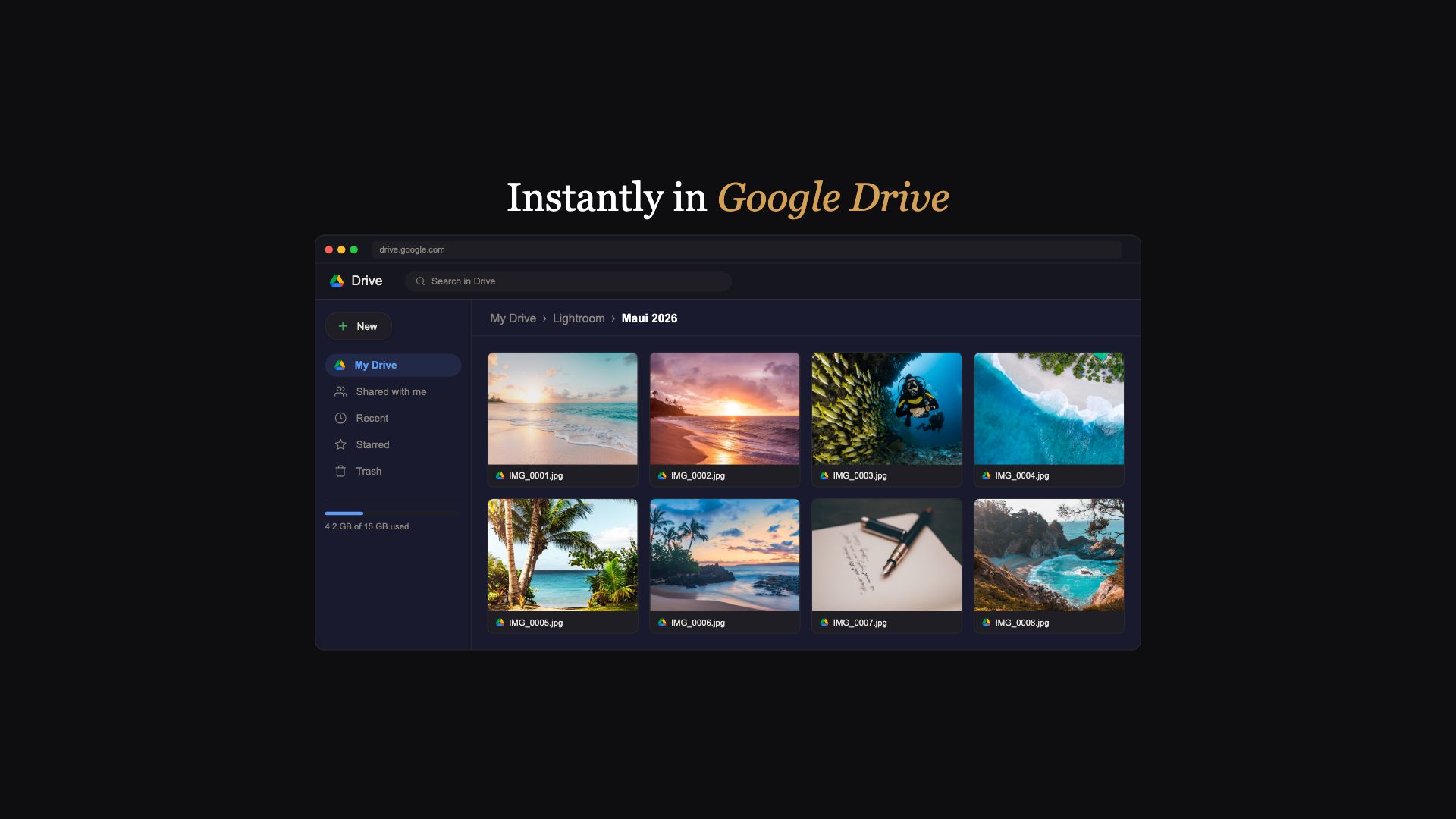
CLICK TO PLAY - 72 SECONDS, WITH SOUND, CAPTIONS ON SCREEN
Read the transcript
The video is narrated, and the narration is also captioned on screen. This is the full spoken text:
- Your best edits deserve better than re-uploading every time.
- Right now, backing up means export, open Drive, upload, repeat.
- Publish to Google Drive straight from Lightroom - no export needed.
- Setup takes a minute - just paste your license key.
- Connect your Google account once. The plugin only ever touches the files it creates.
- Name a collection in Lightroom, and it becomes a folder in your Drive.
- Hit Publish, and your edited photos upload as full-resolution originals, straight into the folder.
- Seconds later, they're in Drive - ready on every device.
- Change an edit later? Re-publish, and the file updates in place - no duplicates.
- Big files just work, and it's a one-time purchase. Everything you need, nothing you don't.
- Get the plugin, and keep Drive in step with your edits.
FEATURES - WHAT DEVELOPS
Built for photographers who back up
through Google Drive.
Collections become folders.
Every Published Collection becomes its own folder in your Drive, created for you. Organize once in Lightroom and the same structure is waiting in Google Drive - no folders to make, no files to drag.
Edit once. The file updates.
Tweak a photo in Lightroom, hit re-publish, and the file in Drive updates in place - one clean version per photo, spotted automatically from your edits. Nothing to tidy up afterwards.
Publish without leaving Lightroom.
No browser tab, no dragging files into a folder, no waiting on a sync folder. Drop photos into a Published Collection and hit Publish - that's the whole workflow.
Big files just work.
Full-resolution JPEGs, large TIFFs, 100MP conversions - they upload in resumable chunks. A dropped connection picks up where it left off instead of starting the whole file over.
Removed photos go to the trash.
Take a photo out of a Collection and the plugin moves it to your Google Drive trash - recoverable for 30 days. Nothing is hard-deleted. You get a month to change your mind.
It only sees its own files.
The plugin works inside one folder it creates for you. By Google's design it cannot read, move, or delete anything else in your Drive. The rest of your files are invisible to it.
UNDER THE SAFELIGHT - WHY IT'S DIFFERENT
Your Drive stays in step with your edits.
The usual way: export a Collection out of Lightroom, open Drive in a browser, make a folder, drag the files in. Edit one of those photos next week and you do it all again - re-export, find the folder, replace the old file, hope you grabbed the right one. Desktop Drive sync doesn't close the gap either: it mirrors whatever sits in a local folder, with no idea which Collection a photo belongs to or that you just re-edited it.
Google Drive for Lightroom closes the loop. Each Published Collection becomes its own Drive folder, kept current for you. Edit in Lightroom, hit re-publish, and the plugin replaces only the files that actually changed - matched by your edits, not by guesswork. You stay in Lightroom. Drive keeps up on its own.
HOW IT WORKS - THREE STEPS
Up and running
in minutes.
Buy
Purchase the plugin and get your license key by email, usually within seconds.
Connect
Add the plugin to Lightroom, paste your license key, and sign in to Google once. A single consent screen and you're connected.
Publish
Make a Published Collection, drop your photos in, and hit Publish. A matching folder appears in your Drive.
CONTACT PRINTS - WHAT PEOPLE SAY
Lightroom Collections,
mirrored to Drive.
It creates Drive folders straight from my LR Collections. Best part? If I re-edit a shot, it just updates the file in Drive automatically. No messy duplicates to clean up later.
I deliver all my client galleries this way now. If a client wants a tweak, I fix it in Classic, hit publish, and the Drive folder updates in place. Saves me at least an hour per job.
Finally, a tool that actually keeps my Drive archive synced with Lightroom. Handles my massive TIFF files no problem, and it only re-uploads what I actually change. Pure set-and-forget.
FAQ - BEFORE YOU INSTALL
Frequently asked
questions.
Which Lightroom versions and operating systems are supported?
The plugin works with Adobe Lightroom Classic (the desktop version) on both macOS and Windows. It is not compatible with the cloud-based "Lightroom" (formerly Lightroom CC). Any recent version of Lightroom Classic should work.
How is this different from uploading manually or using Drive sync?
Manual upload means exporting from Lightroom, opening Drive in a browser, making a folder, and dragging files in. Every edit means doing it again - re-export, find the folder, replace the old file. Your folders and your Lightroom Collections drift apart over time.
Desktop Drive sync just mirrors a local folder. It doesn't know which Collection a photo belongs to, and it has no idea you re-edited one.
This plugin maps each Published Collection to its own Drive folder, and re-publish updates only the files you changed. You stay in Lightroom and Drive keeps up.
What file types can it upload?
Anything Lightroom can export - JPEG, TIFF, PNG, and full-resolution conversions of RAW files (.ARW, .CR2, .NEF, .DNG). You choose the format, quality, and size in Lightroom's normal export settings, and the plugin uploads exactly that.
Will large files or a flaky connection break the upload?
No. Large files upload in resumable chunks - if your connection drops mid-upload, it resumes where it stopped instead of starting the file over. Photos upload one after another, so a big Collection just takes a little longer, not a babysitter.
Can the plugin see the rest of my Google Drive?
No. The plugin can only ever see the files it created itself. It works inside one folder it makes for you. By Google's design it cannot read, move, or delete anything else in your Drive - your existing files are completely invisible to it.
What happens when I remove a photo from a Collection?
It moves to your Google Drive trash, where it's recoverable for 30 days - nothing is hard-deleted. One thing to know: Lightroom only sends the removal on your next Publish click, not the moment you take the photo out. Hit Publish and it goes to the trash.
Do uploads use my Google account storage?
Yes - files count toward your Google account storage like anything else in Drive. The plugin doesn't recompress or alter what Lightroom exports. If you're tight on space, Lightroom's export options let you cap the size and quality of what gets uploaded.
Does it edit my photos in Lightroom?
No. Nothing about your photos in Lightroom changes - not your edits, not your ratings, not your originals, not your catalog. The plugin reads what's in a Published Collection, exports a copy through Lightroom's normal export pipeline, and uploads that copy. Your master files stay exactly where they are.
Is my Google sign-in safe?
Yes. Your Google sign-in happens directly with Google in your browser - your password never touches the plugin, and never touches Lightroom Tools. The plugin asks for the minimum access it needs (one folder it creates), and Google reviewed and verified that access in March 2026. See our Privacy Policy for full details.
Can I get a refund?
Yes - 30-day money-back guarantee, no questions asked. If it is not right for you for any reason, email us within 30 days of purchase and we will refund you in full. We would rather you be happy than keep a sale. Full terms on the Terms of Service page.
Still have a question? Email [email protected] or use the contact form - a real person reads every message and replies, usually within a day. Ask before you buy; we would rather answer than have you guess.
FROM THE JOURNAL
Deep dives for
Lightroom photographers.
THE PRINT - READY WHEN YOU ARE
Stop re-uploading
every time you edit.
Publish your Collections to Google Drive folders. Edit, re-publish, the file updates in place. Done in 1 click.
- One-time $19, unlimited photos - it pays for itself the first time you don't rebuild a client folder by hand
- 30-day money-back guarantee - no questions asked
- Direct upload to Google - we never see your photos
LIGHTROOM CLASSIC ON MACOS OR WINDOWS · FREE GOOGLE ACCOUNT