FRAME 09 - COMPOSE · LIGHTROOM CLASSIC PLUGIN · NEW
Collages that look designed. Not dragged together.
A Lightroom Classic plugin that turns your selection into finished collages - prints, album spreads and blog boards. Select, pick a layout, save. Your first collage in under a minute, without leaving Lightroom.
LAUNCH PRICE UNTIL OCT 31 - $49 FROM NOV 1 · LIGHTROOM CLASSIC · MACOS 14+ ON APPLE SILICON (M1+) · INTEL / WINDOWS - REQUEST IT →
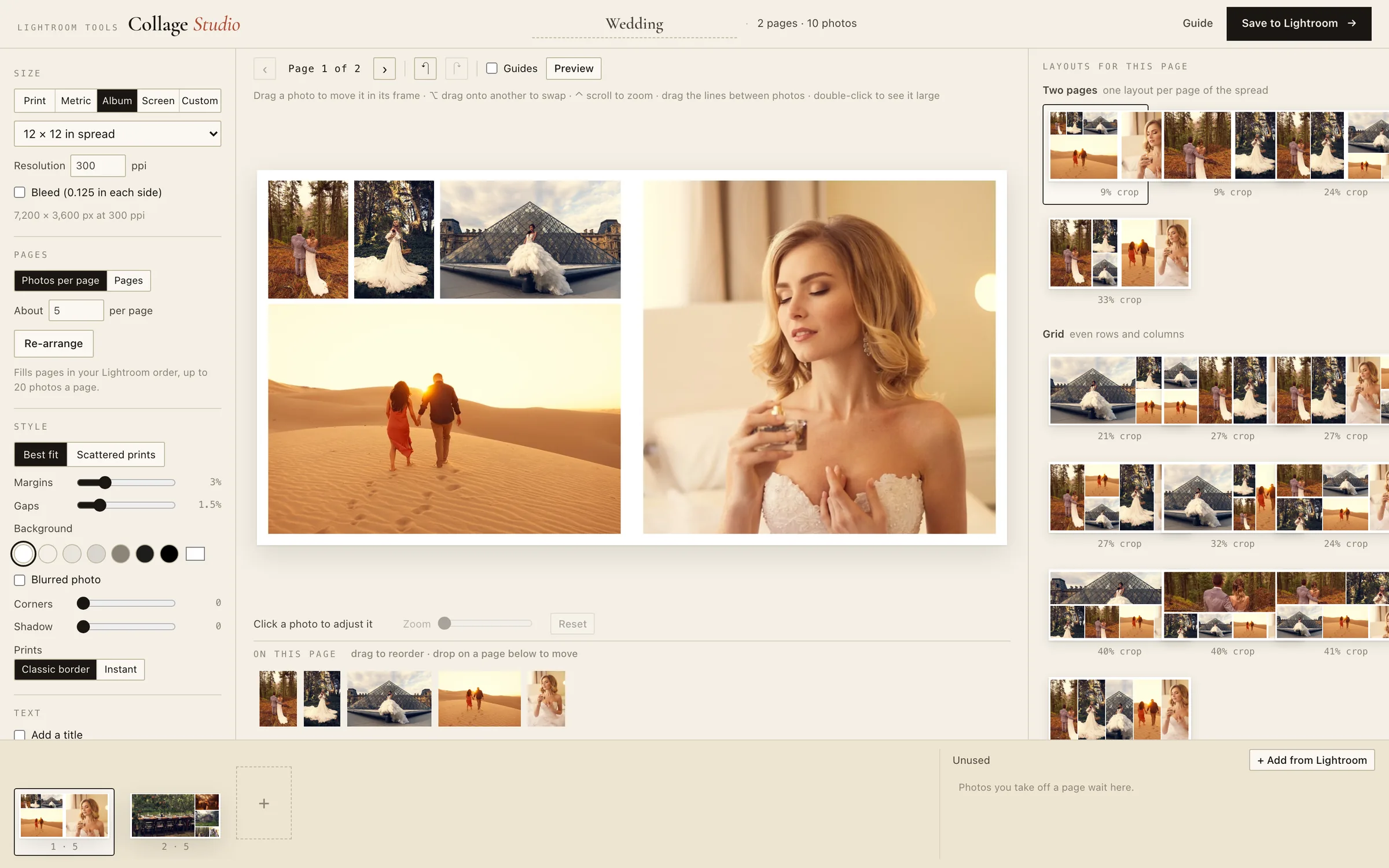
10 PHOTOS IN, A 12 × 12 ALBUM SPREAD OUT - AS IT OPENEDREAL SCREENSHOT
SEE IT IN ACTION
A wedding album,
laid out in 87 seconds.
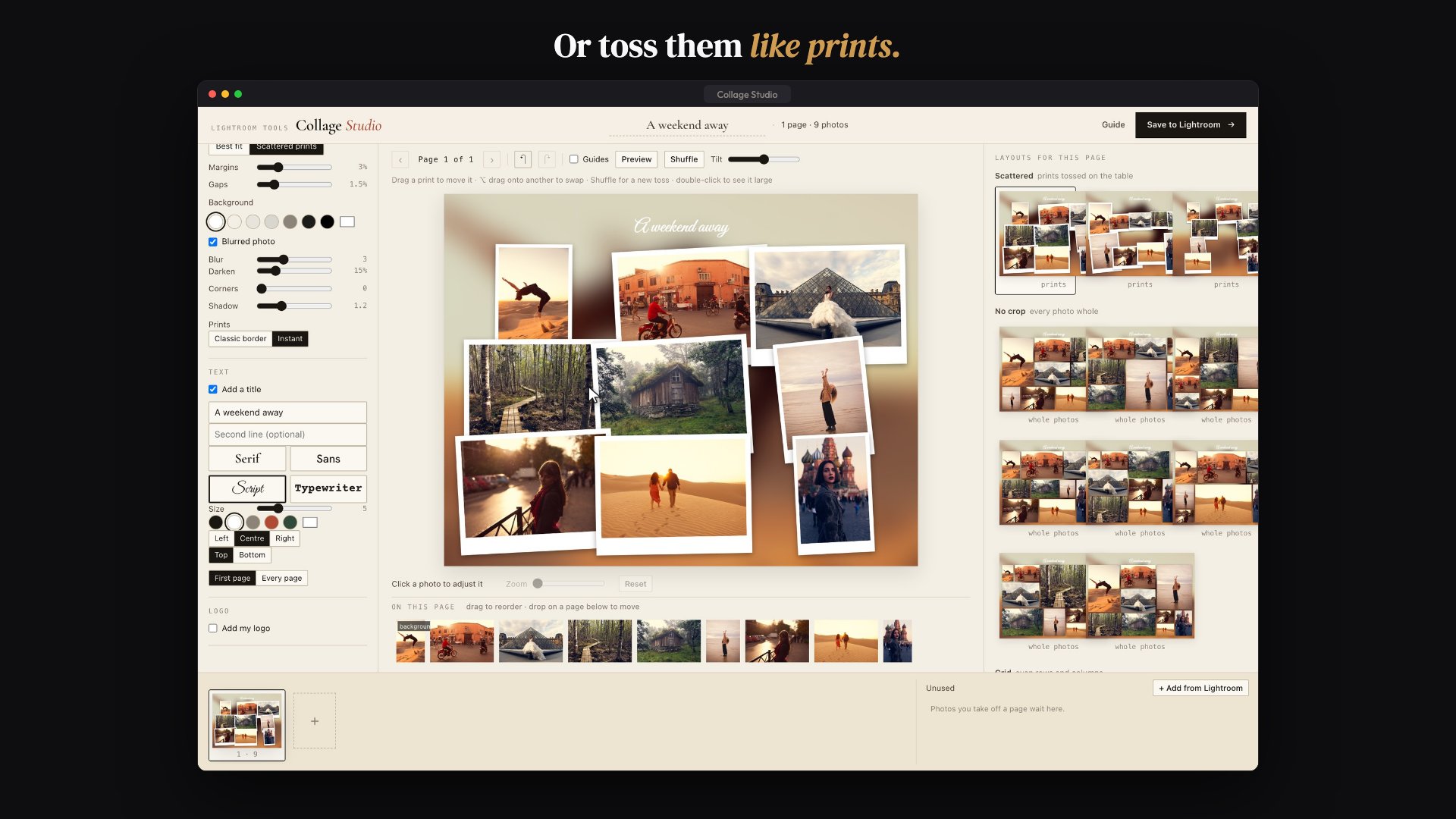
CLICK TO PLAY - 87 SECONDS, WITH SOUND, CAPTIONS ON SCREEN
Read the transcript
The video is narrated, and the narration is also captioned on screen. The designer scenes are real screenshots of Collage Studio. This is the full spoken text:
- Your best photos deserve to live on one page.
- In Lightroom, that means drawing every cell by hand. Page after page.
- Collage Studio lays out the pages for you, right from your selection.
- Select the wedding photos in Lightroom, and open Collage Studio from Plug-in Extras.
- The designer opens with every page already laid out - and a wall of other layouts, filled with your own photos.
- Album spreads get one layout per page, so no face ever lands on the fold.
- Or toss them like instant prints, on a blurred photo, with a title in your own words.
- Save, and every page is rendered from your edited originals - print-ready, back in your catalog.
- Need a change next month? Edit Collage opens it right where you left it.
- Faces stay whole, every size from Instagram to wall prints, and nothing leaves your Mac.
- Collage Studio. Select, lay out, save - your first collage in a minute.
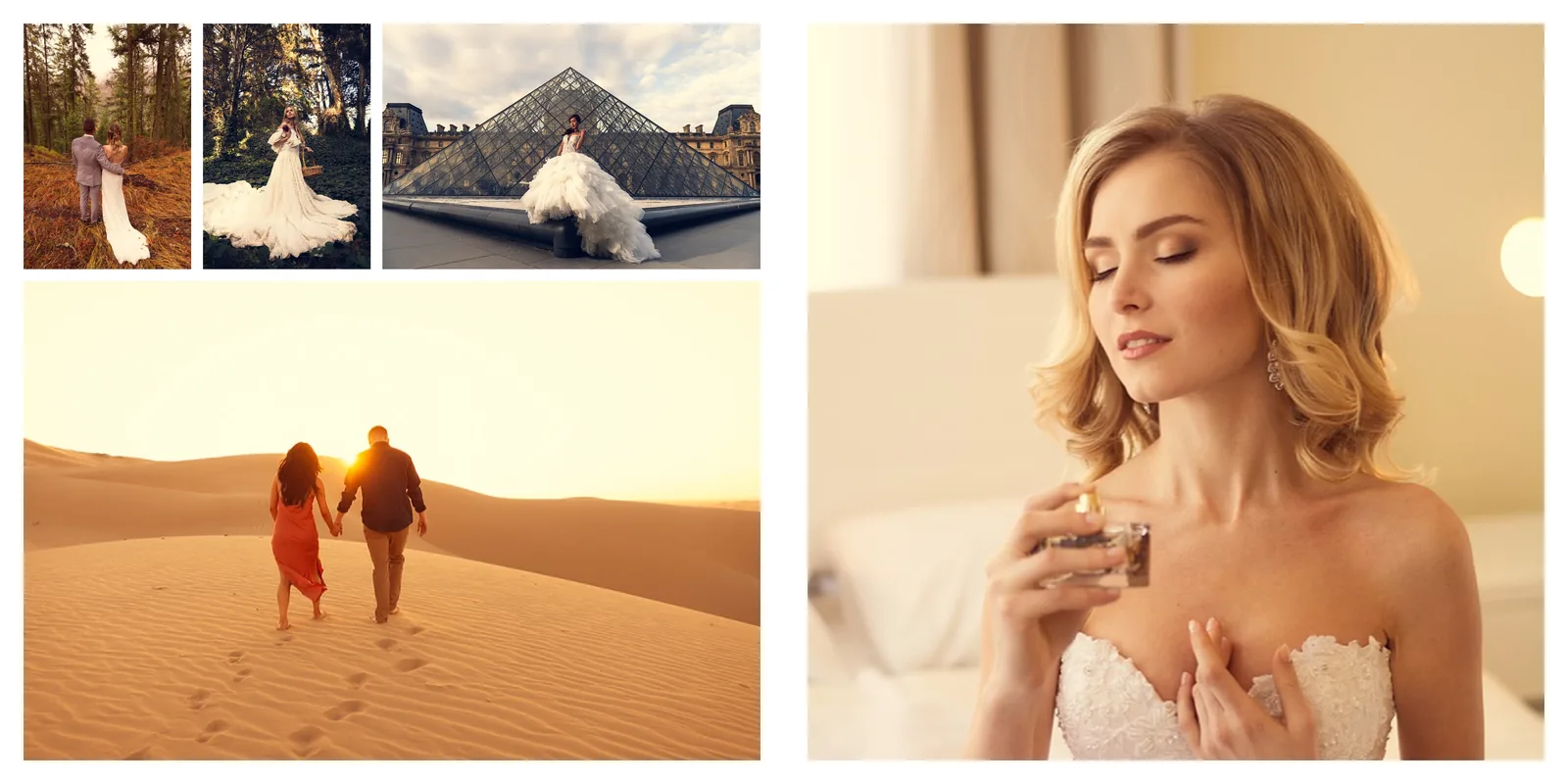
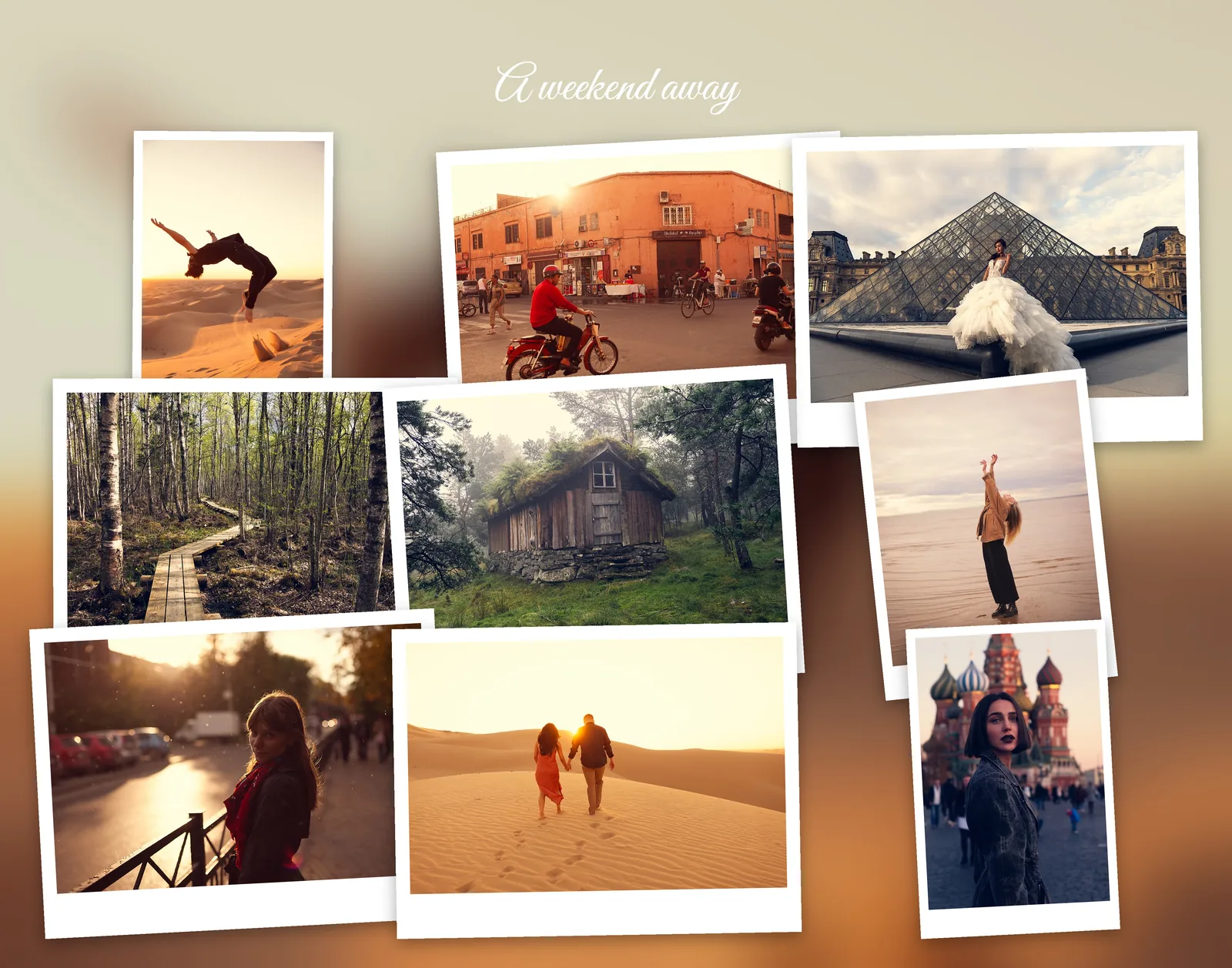
CONTACT PRINTS - STRAIGHT OUT OF COLLAGE STUDIO
Real pages,
exactly as they were saved.
No mockups. Each of these is a file Collage Studio wrote, from the photos selected and a few clicks in the designer.

FEATURES - WHAT DEVELOPS
Built for photographers
who still print.
Select the photos. The pages are already laid out.
Open your selection and every page arrives designed, in your Lightroom order. A wall of other layouts sits beside it, already filled with your own photos. Click one and it is done.
Nobody's face gets cut.
Collage Studio finds the faces and people in every photo and frames each crop around them. Layouts marked "whole photos" crop nothing at all.
Print-ready at the exact size.
4 × 6 to 24 × 36, A5 to A1, album spreads with bleed. Rendered from your edited full-resolution files in sRGB, Adobe RGB or Display P3.
Back in your catalog, next to the shoot.
Finished pages land in a Collage Studio collection, saved in their own folder or right beside the photos they came from - sorted in after them.
Open it again next month.
Select a saved collage and keep going: add photos, swap one, rearrange a page. Undo works the way you expect.
Your title and logo, in the file.
A title and a second line in four typefaces, plus your logo. What you see on screen is exactly what gets saved.
UNDER THE SAFELIGHT - WHY IT'S DIFFERENT
The Print module makes you draw it. This lays it out.
The usual way to make a collage from Lightroom Classic is the Print module: build a custom package, draw every cell by hand, drop the photos in one at a time, and repeat for every page. Or export the selects, upload them to a template app, arrange them there and export again - then make the whole round trip whenever a photo changes.
Collage Studio starts from the photos you already picked. Every page arrives laid out, you choose between layouts that already hold your photos, and the finished files come back into your catalog, rendered from the edits you made. Change your mind next month - reopen it and keep going.
HOW IT WORKS - SELECT. ARRANGE. SAVE.
Pick the photos,
keep the page you like.
Select
Pick the photos in Lightroom - one page or a whole album - and open Collage Studio. Every page is already laid out.
Arrange
Choose a size and a layout, nudge a photo inside its frame, add a title. The page on screen is the page you get.
Save
Save to Lightroom. The pages are rendered from your edited originals and land in your catalog, ready for the lab.
FAQ - BEFORE YOU INSTALL
Frequently asked
questions.
How is this different from Lightroom Classic's Print module?
The Print module can make a collage: you build a Custom Package, draw every cell by hand, drop the photos in one at a time and repeat for every page. It works, and it is free - for one page now and then, it is enough.
Collage Studio does the drawing for you. Select the photos and every page arrives laid out, with a wall of other layouts to choose from, already filled with your own photos. It also makes album spreads, social posts and blog boards, and it saves the finished files back into your catalog.
Which Macs and which Lightroom do I need?
Lightroom Classic on a Mac with Apple Silicon (M1 or later), running macOS 14 Sonoma or newer. Intel Macs and Windows are not supported yet - tell me if you need either, demand decides what comes next.
What sizes can I make?
Prints from 4 × 6 to 24 × 36 in, metric sizes from A5 to A1, album pages and two-page spreads (8 × 8 to 12 × 12 in, and 20 or 30 cm), Instagram and Facebook posts, stories, Pinterest pins, HD and 4K, blog boards that grow as tall as the photos need, and any custom size.
Will it cut off people's faces?
No - that is the first thing it checks. Collage Studio finds the faces and people in every photo on your Mac and frames each crop around them. Layouts marked "whole photos" do not crop at all, and you can drag any photo inside its frame if you want it placed differently.
Is the quality good enough to print?
Yes. Every page is rendered from your edited full-resolution files at exactly the size it needs, at 300 ppi by default, with Lightroom's own output sharpening. Save as JPEG or TIFF in sRGB, Adobe RGB or Display P3, with print bleed when your lab wants it. If a photo is too small for the size you picked - say, only a Smart Preview is on hand - it tells you before you save.
Does it change my photos or my edits?
No. Nothing about your photos changes - not your edits, not your ratings, not your originals. Collage Studio reads your edited photos and writes new files: the finished collages, saved in their own folder or right next to the photos they came from, and added to a Collage Studio collection in your catalog.
Can I change a collage after I save it?
Yes. Select a saved collage in Lightroom and open it again: add photos, swap one, rearrange a page, change the title, then save. The new version replaces the old one in the collection, and the earlier file stays on disk in case you want it.
How many photos can a collage have?
Up to 200 photos in one project, spread over as many pages as you like, with up to 20 photos on a page.
Can I add a title or my logo?
Yes - a title and a second line in four typefaces, in any colour from the palette, and your own logo in a corner or centred at the bottom. What you see on screen is exactly what ends up in the file.
Do my photos leave my computer?
No. Everything runs on your Mac: the layouts, the face finding and the rendering. No account, no upload, and it works with the internet off.
Why is it $25?
It is the launch price, until October 31. From November 1 Collage Studio costs $49. Buy it now and the license is yours at the price you paid - it does not expire and there is nothing to renew.
Can I get a refund?
Yes - 30-day money-back guarantee, no questions asked. If it is not right for you for any reason, email us within 30 days of purchase and we will refund you in full. Full terms on the Terms of Service page.
THE PRINT - READY WHEN YOU ARE
Stop drawing collage cells
by hand.
Select, pick a layout, save. Your first collage in under a minute.
- One-time $25 launch price until October 31 ($49 from November 1), unlimited collages
- 30-day money-back guarantee - no questions asked
- Your photos never leave your computer
LIGHTROOM CLASSIC · MACOS 14+ ON APPLE SILICON (M1 OR LATER)