LOOK SLOTS - THE WALKTHROUGH
Nine clipboards for your looks, on the real screen.
Eight minutes in Lightroom Classic. It opens with a real editing session on a Maldives trip: one preset becomes Slot 1, a crunchier variant Slot 2, a look with a Select Subject mask Slot 3, a black and white Slot 4, each pasted with one key. Then how to start, the keyboard shortcuts on Mac and Windows, the copy window and the paste rules, AI masks, and the restart test. Use the chapters to jump to the part you need.
CLICK TO PLAY - WITH SOUND, CAPTIONS ON SCREEN - 7:58
CHAPTERS
The photos are from a real trip, exported at a smaller size for this demo. The looks are Lightroom Tools presets with a few slider changes on top; your own presets and adjustments work the same way. The plugin version shown is 1.0.0.
Read the narration instead
This is Look Slots, a plugin for Lightroom Classic. It gives you nine clipboards for develop settings, and with a free helper, each one sits on its own key. The looks you build during a session stay loaded, ready to paste. Let me show you the problem it solves with a real editing session: a trip to the Maldives, straight out of the camera.
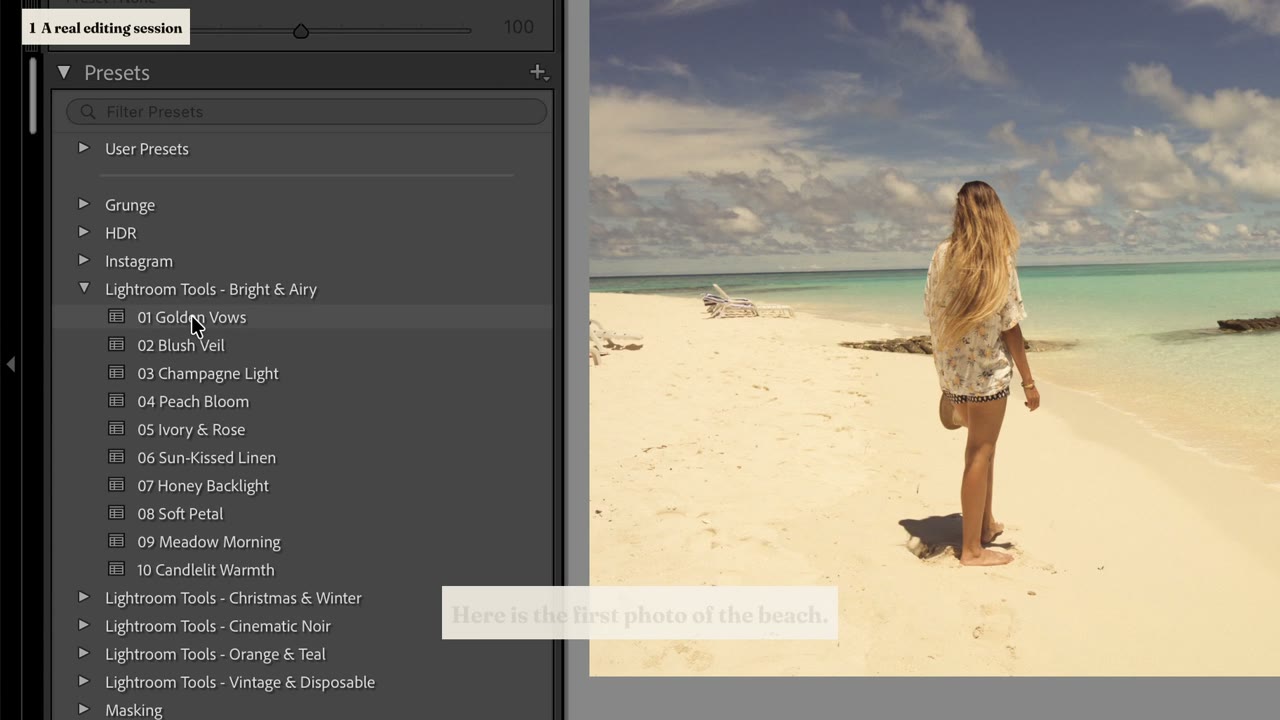
Here is the first photo of the beach. I start with one of my presets, Golden Vows, and let Lightroom's Auto settings take care of the exposure, Command U. That is the look for this beach. Normally I would copy these settings and paste them onto the next photos. With Look Slots I press Control Option 1 instead. This window is the plugin's version of Lightroom's Copy Settings dialog, same groups, with Crop and Remove unticked by default. Return, and the look is in Slot 1. Now the next photos. Control Option Command 1 pastes Slot 1. Next photo, paste. Next one, paste. This one wants more bite. Let's say some of the photos get a crunchier version of the same look: clarity and texture up. With Lightroom's single clipboard I would now have to choose: overwrite the beach look, or go back to that photo every time I need it. With Look Slots I press Control Option 2, and I have two looks in the pipe. Next photo, more detail: Slot 2. This one, soft: Slot 1. Detail again. No going back, no hunting for the photo I copied from. A portrait. The look is right, but she should pop a little. I paste Slot 1, add a Select Subject mask, and lift her half a stop. Control Option 3. A look with an AI mask inside, and it goes into Slot 3. On the next portrait, paste from Slot 3: the mask finds the new person on its own. One more: a black and white version of the beach look. Paste Slot 1, press V, and save it as Slot 4. From here on the whole shoot is one key per photo. Slot 2 for the crab and the drone shots, Slot 4 for the sunset silhouettes. Show Look Slots, in the Plug-in Extras menu, lists what each slot holds. I give them names, because Slot 2 means nothing tomorrow: Golden base, Crunchy, Subject pop, Black and white. And the slots stay loaded after you quit Lightroom. The same keys work tomorrow, and a look you use every week can live on a fixed key for good.
Installing takes a minute. Unzip your download and you get a folder called look-slots.lrplugin. In Lightroom, open File, Plug-in Manager, click Add, and pick that folder. It appears in the list as Look Slots. Paste the license key from your purchase email into the License section and click Activate. One computer at a time, Deactivate before you move. From then on the items live in Library, Plug-in Extras, and also under File, Plug-in Extras, so they are there in the Develop module too: nine Copy items, nine Paste items, and Show Look Slots. You can use them from the menu, but the plugin only gets fast with the shortcuts, so set those up right away.
Lightroom Classic does not let you put a keyboard shortcut on a plugin's menu item, on either platform. So the plugin ships a ready-made configuration for a small, free helper app that presses the menu item for you. On a Mac the helper is Hammerspoon. Install it, copy the file hammerspoon-init.lua from the plugin folder into the hidden hammerspoon folder in your home, the one Terminal line that does it is in the guide, and choose Reload Config from its menu bar icon. From then on Control Option 1 to 9 copies to a slot, and Control Option Command 1 to 9 pastes from it, only while Lightroom is in front. On Windows the same file exists for AutoHotkey version 2, with Control Alt and Control Alt Shift. Both helpers also handle the AI mask update after a paste, we come to that in a minute.
Every copy opens this window: three columns of setting groups, from Profile and Basic to Color, Detail, Lens and Effects, plus one checkbox for every mask on the photo. Crop and Remove start unticked, because a look rarely needs another photo's framing or healing spots. The window remembers your ticks, so next time Return is enough. Check None and a single tick gives you a slot that holds only a colour grade, or only a tone curve, to layer on photos you have already exposed by hand. Paste applies the slot to every selected photo, one or two hundred, as a single undo step. With nothing selected it refuses to run, so it can never spray a look across your whole filmstrip, and videos are skipped.
An AI mask, Select Subject or Select Sky, outlines something in the photo it was made on. After a paste it has to find its target again in each new photo. With the helper installed that happens on its own: right after the paste it runs Lightroom's Update AI Settings, and the confirmation says so. A few seconds later the mask sits on the new subject. Without the helper it is one manual step: keep the pasted photos selected and run Update AI Settings yourself, under Settings in Develop, or under Photo, Develop Settings, in the Library. Until then the masks look dark or empty, and that is normal.
Quit Lightroom, open it again, and the slots are still there, names included. So Look Slots works two ways: as a scratchpad for the looks of one session, and as a set of permanent presets on fixed keys, your weekly looks on 7, 8 and 9. A few things to know. Every paste is one undo step. Nothing selected, nothing happens, and videos are skipped. Leave Crop and Remove unticked unless the whole batch shares a framing. Questions, or a slot that did not do what you expected? Write to [email protected], and a real person answers.
Look Slots, by lightroom-tools.com.
The written guide covers the same ground with screenshots: Look Slots setup and usage guide. If something in the video does not match what you see on your own screen, email [email protected] with a screenshot of that spot - I answer every message myself.