How to find any photo in Lightroom Classic in 10 seconds
Quick Answer
Press the backslash key to show the Library Filter bar, click Text and type a word, then shift-click Attribute to add a rating or label to the same search. Click All Photographs first so the filter sees the whole catalog, not one folder. Save the filters you repeat as presets and lock them. For the lists you check every week, make a smart collection and let it fill itself.
Most of us search the slow way: scroll, squint, scroll again. Lightroom Classic has a proper search system built in. It is just spread over three places, the filter bar, the Catalog panel and the collections panel, and nobody puts them together for you. Here is how I use them, in the order that saves the most time.
1. Open the filter bar, and stack it
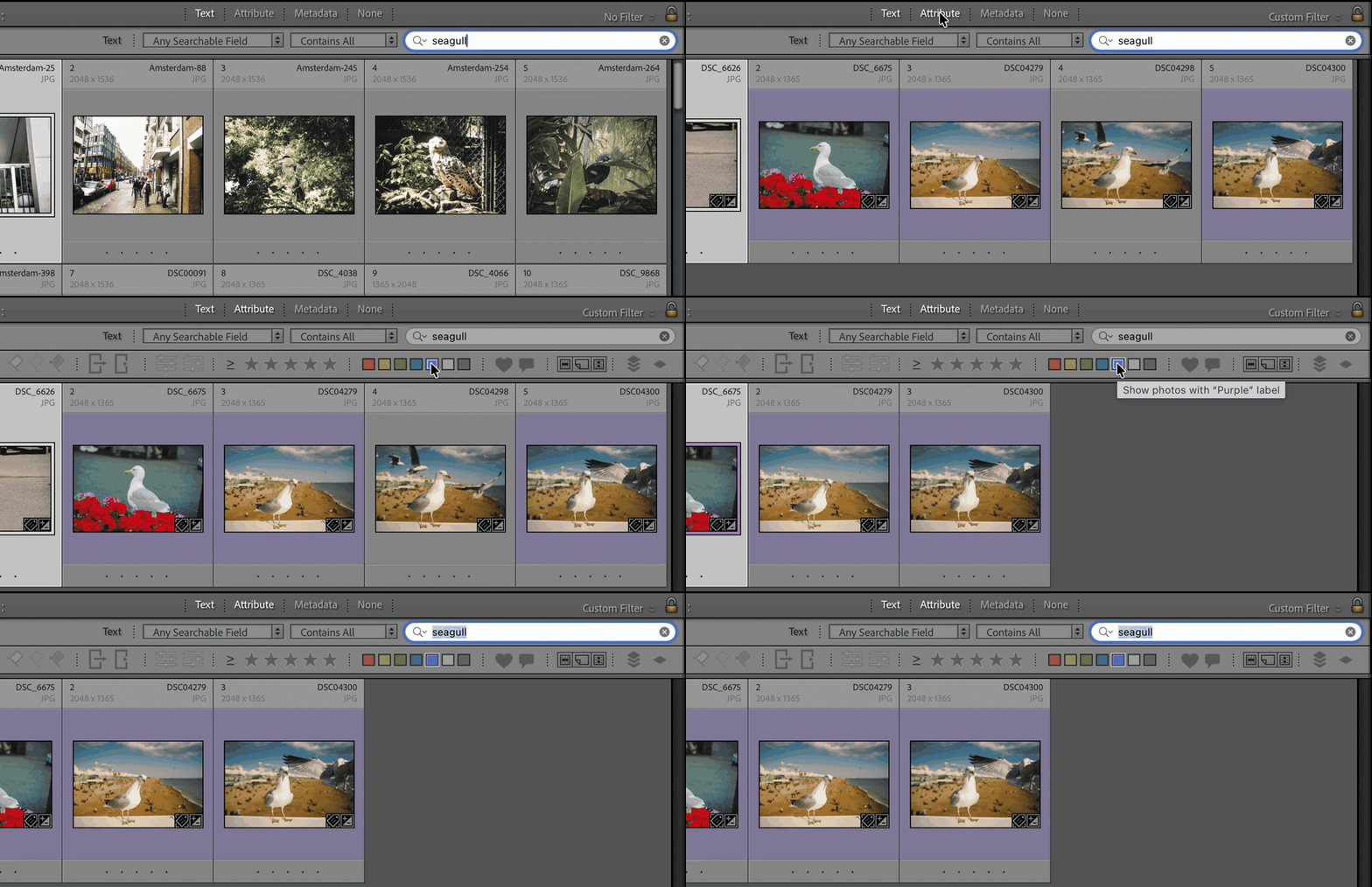
In the Grid, press \ (backslash) to show the Library Filter bar. Click Text and type a word: a file name, a keyword, a caption. That is the search most people know about, and it is already faster than scrolling.
The part most people miss: shift-click Attribute, and it opens next to Text instead of replacing it. Now a photo has to match both. "seagull" and a purple label. "beach" and four stars. Shift-click Metadata as well and you can add a camera, a lens or a date to the same search. Cmd+F on a Mac (Ctrl+F on Windows) jumps straight to the text box from anywhere in the Library.
2. Search the whole catalog, not one folder
The filter only looks inside whatever is selected on the left. If a folder is selected, the search covers that folder, and a photo sitting in the folder next door is invisible. This is the cause of more "that photo is gone" messages than anything else I see.
Click All Photographs in the Catalog panel first, then search. If the photo exists in the catalog, it shows up. If you want to narrow by place afterwards, the Folder column in the Metadata filter does it without leaving the search. The folders versus collections post explains why I search from All Photographs by default and let collections do the grouping.
3. When a color label finds nothing
A question from a Lightroom group this week: someone labelled a set of photos purple, and now the Purple chip in the Attribute bar says "No photos match the filter". The photos still carry the label they were given. The chip just cannot see it.
Lightroom stores a label as a word, not a color. The Color Label Set, under Metadata > Color Label Set, decides which word goes with which color. If the photos were labelled under a different set, or the set was changed later, the label text no longer matches, the photos show a white label, and the Purple chip skips them.

Click the white chip at the end of the color row, called Other Label (the tooltip says Custom), to find them. Select them, right-click, Set Color Label > Purple, and they are back in the Purple filter. If you share catalogs with someone who uses a different set, this will keep happening, so agree on one set or search by label text instead (see the FAQ). More on choosing between flags, stars and labels in this post.
4. Save the searches you repeat
The menu at the right end of the filter bar, where it says Custom Filter, has Save Current Settings as New Preset. Name it, and the search you just built, text, rating, label and all, is one click away next time. I keep one for "unrated from the last import" and one for "four stars, not yet exported".
Next to that menu is a small lock. Click it and the filter stays on while you move between folders and collections. Without the lock, every click on the left clears the search; with it, you can walk through ten folders looking at only the four-star photos in each.
5. Let Lightroom keep the list for you
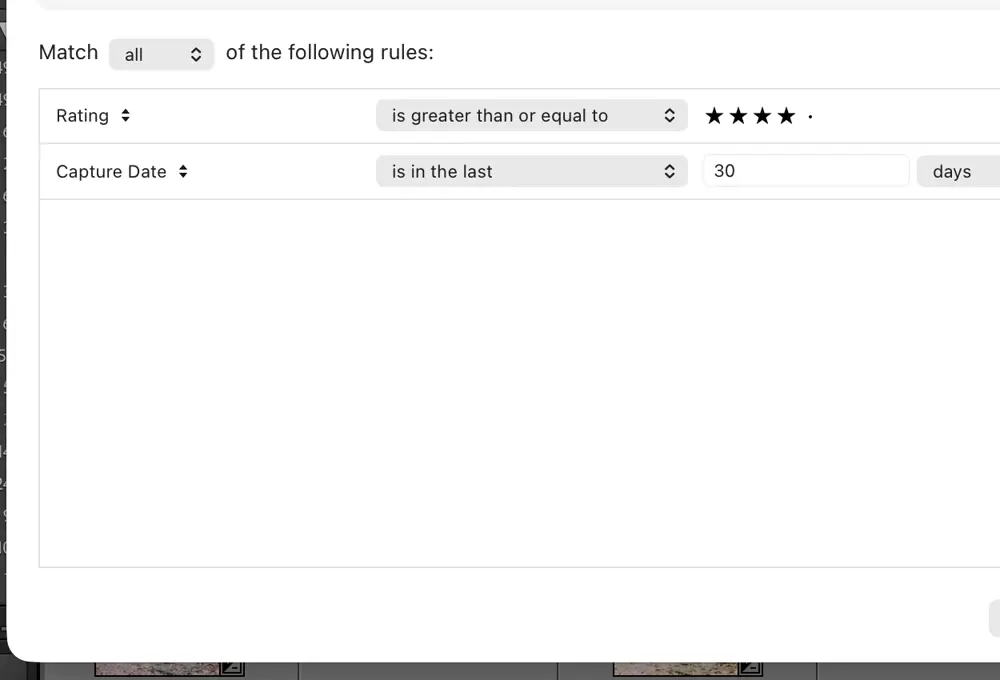
Library > New Smart Collection makes a collection that fills itself from rules, and updates on its own as you rate and tag. It is the right tool for any search you run every week.
Three worth having:
| Smart collection | Rules | What it gives you |
|---|---|---|
| Best of the last 30 days | Rating is greater than or equal to 4 stars, and Capture Date is in the last 30 days | Your best recent work, for the portfolio or the feed, without a search |
| One client, everything | Keywords contains the client's name | Every photo for that client across every folder and year |
| Purple by name | Label Text is Purple | A label rule by word, which keeps working whichever Color Label Set is active |
Match all or any, add as many rules as you like, and nest them with Alt-click on the plus button for "any of these, and all of those".
Bonus: People view
View > People, or the O key, finds faces across your catalog and groups them, free. The first pass over a big catalog is slow, so start it before bed. Once it has run, a person's name is just another keyword you can type into the filter bar. Where it struggles, and what to do about it, is a post of its own.
Where the built-in search stops
All of the above finds what you tagged. If you never typed "seagull", no filter will find a seagull, and most of us tag a fraction of what we shoot. Smart Search fills that gap: type what is in the photo, "seagull on a beach", and it finds it with no keywords at all. It runs on your Mac, nothing is uploaded, and it saves the results as a keyword and a collection so the next search is instant. Apple Silicon Macs only. I wrote about how it works when I built it.
Smart Search finds photos in Lightroom Classic by describing them, no keywords needed, and saves every result as a keyword and a collection. Runs on your Mac. One-time purchase, 30-day money-back guarantee.
Get Smart SearchOr read the Smart Search guide first.
Frequently asked questions
What does the backslash key do in Lightroom Classic?
In the Library module, the backslash key shows and hides the Library Filter bar above the Grid. Cmd+F on a Mac (Ctrl+F on Windows) opens the bar and puts the cursor in its text box.
Why does the Library Filter find nothing when the photo is in the catalog?
The filter only searches the source selected on the left: one folder, one collection or All Photographs. If a folder is selected, a photo in the folder next door does not exist as far as the filter is concerned. Click All Photographs in the Catalog panel and search again.
Can I search by the name of a color label?
Yes. Lightroom stores a color label as a word, not a color. In the Library Filter choose Metadata and add a Label column, or in a smart collection use the rule Label Text is, followed by the word. Both find photos labelled under any Color Label Set.
Does Lightroom Classic have face recognition built in?
Yes. View > People, or the O key, finds faces across the catalog and groups them, free. The first pass over a large catalog is slow, so start it when you can leave the machine alone.
Got a Lightroom question of your own? The contact form comes straight to me. The five fixes from this month's forums came from exactly that.