5 Lightroom Classic problems from this month's forums, and the fixes
Quick Answer
The five fixes: set Catalog Settings > Backups to Once a week, when exiting Lightroom, and let the backup run when you quit. Quit and delete the folder ending in Helper.lrdata next to the catalog when keywording slows down. After keyword sync doubles a keyword, export your keyword list, move the photos to the right keyword, delete the stray and purge. A missing folder gets Find Missing Folder or Update Folder Location, never a re-import. A Lightroom that won't open gets a new test catalog first, a preferences reset second, a reinstall last.
I spend part of every week answering Lightroom Classic questions in forums and groups. These five came up again and again in October 2026. If one of them is yours, the fix is below. If none of them is, the first one is still worth two minutes, because most people who think they have a backup do not.
1. Your catalog backup may not be running
Lightroom Classic only backs up the catalog when you quit it. If the schedule says Never, or you click Skip this time every time the dialog appears, there is no backup. I asked three people this month to check, and two of them had nothing.
Check now: open Catalog Settings (the Lightroom Classic menu on a Mac, the Edit menu on Windows) and click the Backups tab. The Back up catalog menu is the whole story. Pick Once a week, when exiting Lightroom, or Once a day if you edit most days. When the Back Up Catalog dialog shows up on quit, let it run and keep Test integrity before backing up ticked. That test is what catches a corrupt catalog while you still have a good copy.
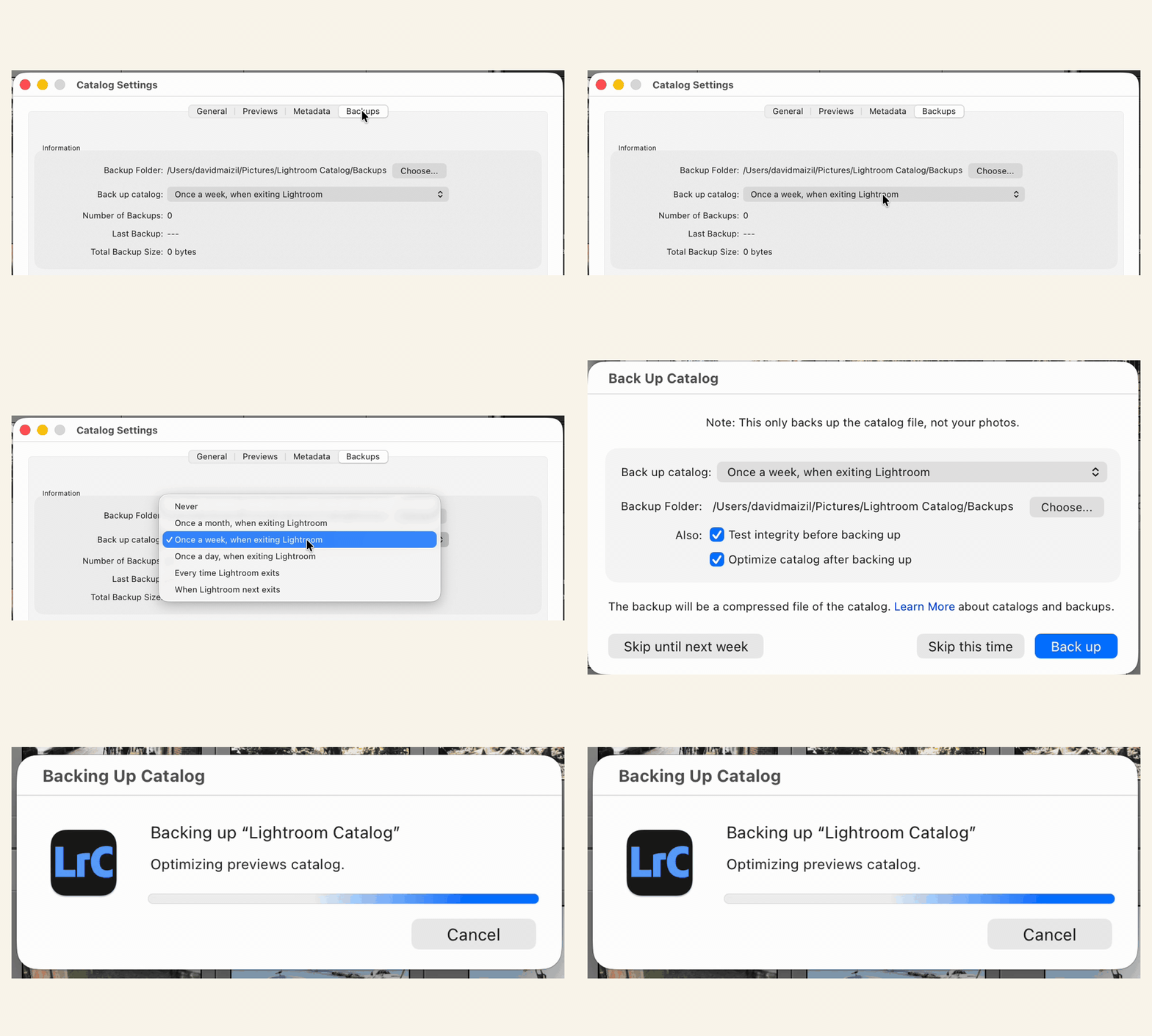
Two things to know. The backup is the catalog file only: edits, ratings, keywords, collections. It does not include your photos, which need their own copy on a second drive or in the cloud. And if the backup folder you chose is on a drive that is not plugged in, Lightroom quietly falls back to the Backups folder next to the catalog, on the same drive as the catalog. One drive failure then takes both. Point the backup at a second drive, and plug it in before you quit.
2. Keywording got slow
Typing a keyword and waiting a second for the suggestion list is not a big catalog problem. It is usually a cache problem. Lightroom keeps a helper database next to the catalog, in a folder whose name ends in Helper.lrdata, and it can go bad without any error message.
The fix takes a minute. Catalog Settings > General has a Show button that opens the catalog folder in Finder or Explorer. Quit Lightroom, delete only the folder that ends in Helper.lrdata, and start Lightroom again. It rebuilds the helper from the catalog, and the keyword suggestions come back at full speed.
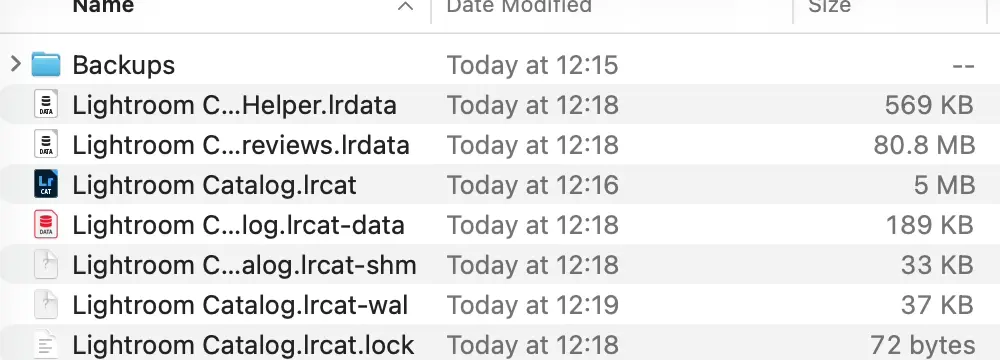
Delete only that one. The folder ending in .lrcat-data holds your AI masks and other edit data, and losing it means losing work. The Previews folder is safe to delete too, but rebuilding previews on a big catalog takes hours, so there is no reason to touch it for this. While you are in the neighbourhood, File > Optimize Catalog is worth a run as well.
3. Keywords doubled after syncing
Since Lightroom Classic 15.4, keywords can sync between Classic and the Lightroom app on your phone. Useful, with one catch: the cloud side has no keyword hierarchy. A keyword that lives at People > Family > Ben in Classic can come back from the phone as a new, top-level Ben. Now you have two, and the photos are split between them.
The switch is per catalog, in Preferences > Lightroom Sync > Options > Sync keywords. Turn it off if you do not keyword on the phone. Before any cleanup, save your list with Metadata > Export Keywords, so a wrong click costs you nothing. Then, in the Keyword List panel, click the arrow next to the stray keyword to show its photos, select them all and tick the right keyword. Delete the stray, and finish with Metadata > Purge Unused Keywords.
If you do keyword on the phone, type the full path with a pipe between the levels: People|Family|Ben. That keeps the hierarchy when it syncs back. There is more on hierarchies in the keywords tutorial.
4. Folders went missing after an update
One case this month looked like a Lightroom Classic 15.6 bug and was not. Lightroom had a parent folder spelled "photos" while the drive said "Photos". Nothing had moved. The drive and the catalog simply disagreed about one letter, and every folder underneath showed a question mark.
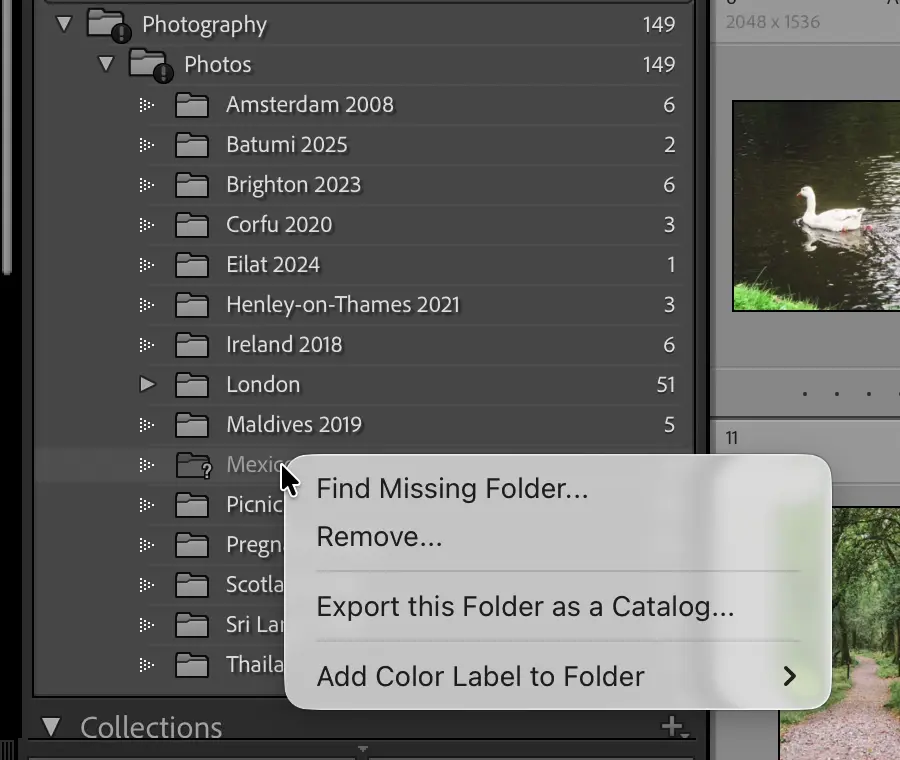
The fix for the case problem is to right-click the parent folder, choose Update Folder Location, point it at any temporary folder, then do it again and point it back at the right one. That forces Lightroom to re-read the path as the drive spells it. For an ordinary missing folder, right-click it and choose Find Missing Folder, then navigate to where it lives now.
What not to do: import the photos again, or run Synchronize Folder while folders are missing. Both create a second copy of every photo in the catalog, with none of your edits, and then you have a real cleanup job.
5. Lightroom won't open
Three steps, in this order, because each one is cheaper than the next.
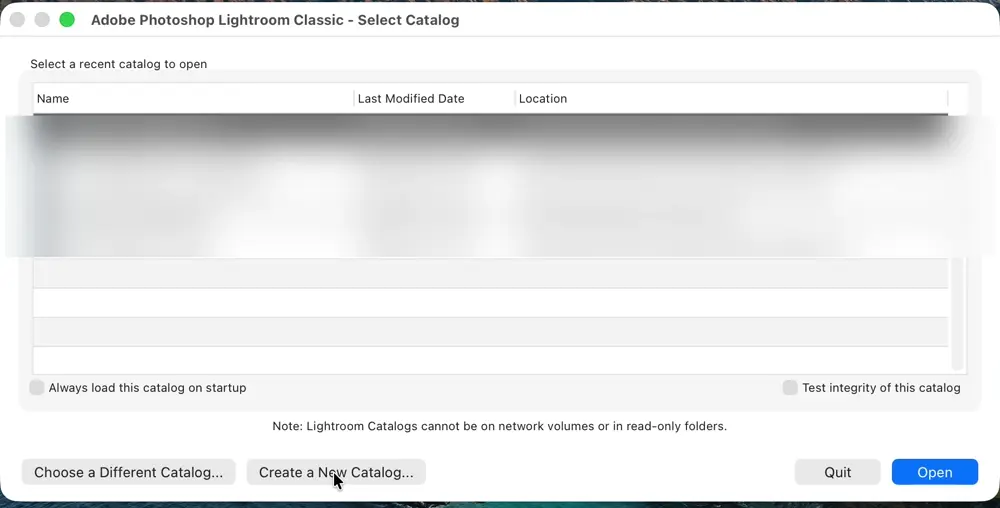
- Hold Option (Alt on Windows) while starting Lightroom and choose Create a New Catalog. If the new, empty catalog opens, Lightroom is fine and your catalog is the problem. This is where the backup from fix 1 saves you: restore the latest zip, open it, and carry on.
- If even a new catalog will not open, hold Option + Shift (Alt + Shift on Windows) while starting Lightroom to reset the preferences. You lose a few settings, like panel layouts and recent catalogs. You lose no edits.
- Only then reinstall from the Creative Cloud app.
One more thing, offered gently because the evidence is thin. A thread this month had Lightroom fail to open right after a Mac cleaner app ran, and the most experienced people in that thread called it a coincidence. It may well have been. It costs nothing to add your Lightroom folders to the cleaner's exclusion list anyway.
One new thing this month
Collage Studio came out on October 7. It is a Lightroom Classic plugin that turns a selection into a finished collage, album spread or Instagram post, laid out for you with faces kept whole, and saved back into your catalog. The collage post covers the free Print module route too, in case that is enough for you.
Collage Studio lays out prints, album spreads and Instagram posts from a Lightroom Classic selection and saves them back into your catalog. One-time purchase, 30-day money-back guarantee.
Get Collage StudioOr see the samples and the demo first.
Frequently asked questions
Does the Lightroom Classic catalog backup include my photos?
No. The backup is a zipped copy of the catalog file only: your edits, ratings, keywords and collections. The photos themselves need their own backup, such as a copy of the photo folders on a second drive or a cloud service.
Where does Lightroom Classic keep catalog backups?
In a Backups folder next to the catalog, unless you chose another folder in the backup dialog. If the folder you chose is on a drive that is not connected, Lightroom falls back to the catalog folder, so the backup ends up on the same drive as the catalog.
Can I delete the Previews.lrdata folder as well?
You can, and Lightroom rebuilds the previews, but on a big catalog that takes hours and the Library module feels sluggish until it is done. Delete only the folder that ends in Helper.lrdata when keywording slows down. Never delete the folder ending in .lrcat-data: it holds your AI masks and edits.
Why does Lightroom Classic say a folder is missing after an update?
Usually the folder moved or was renamed outside Lightroom, or its parent folder's name changed in case only, like photos becoming Photos. Right-click the folder and choose Find Missing Folder, or Update Folder Location, and point it at the folder on your drive. Do not re-import the photos: you would end up with duplicates.
Got a Lightroom question of your own? The contact form comes straight to me, and the next one of these posts is built from what people ask.