SMART SEARCH - THE WALKTHROUGH
Find any photo, on the real screen.
Ten minutes in Lightroom Classic on a catalog of about a thousand photos: indexing, searching by description, how picky the search should be, and keeping the results. Use the chapters to jump to the part you need.
CLICK TO PLAY - WITH SOUND, CAPTIONS ON SCREEN - 10:06
CHAPTERS
The catalog in the video is a demo catalog of about a thousand of my own travel and everyday photos, none of them keyworded. Every search you see is typed live, and the results are what the plugin really returned, near misses included. The plugin version shown is 1.0.5.
Read the narration instead
Smart Search is a plugin for Lightroom Classic that finds photos by what is in them. You type a few words, and it finds the matching photos. No keywords and no tagging by hand. In this walkthrough we go through every menu item on a catalog of about a thousand travel, food and property photos. Everything runs on your Mac. No photo ever leaves your computer.
Once the plugin is installed through File, Plug-in Manager, it lives in Library, Plug-in Extras. Three items do the work: Index Selected Photos, Search by Description, and Manage Smart Search Index. The license items you only use once. The first time you run it, Smart Search downloads its AI model, about six hundred megabytes. That takes a few minutes, once, and Lightroom can look busy while it happens. After that it needs no internet.
Step one is indexing. Smart Search looks at each photo once and remembers what is in it. A photo that is not indexed is invisible to search. Select the photos you want to be searchable. Here, every trip folder in the catalog. Then Plug-in Extras, Index Selected Photos. The dialog asks one thing: skip photos that are already prepared. Leave it ticked, so that the next run only does the new ones. Prepare. Progress shows in Lightroom's activity bar, top left. These thousand photos took about a minute and a half on this Mac. The summary says how many photos were indexed. Videos are left out, search covers photos only. And if a drive is unplugged, Smart Search reads the photo's smart preview instead, so offline photos can be indexed too.
Now the main event. Plug-in Extras, Search by Description. The box at the top limits the search to the photos in view. Untick it to search every indexed photo. Type what you are looking for in plain words. Sunset over the sea. Under the slider, a live count tells you how many photos match before you even search. Twenty, at Balanced. Show at most keeps the best hundred. Leave Put matches in a collection ticked, and press Find. A moment later you are looking at them. Every sunset over water in the catalog, from five different trips, in a collection named after the search.
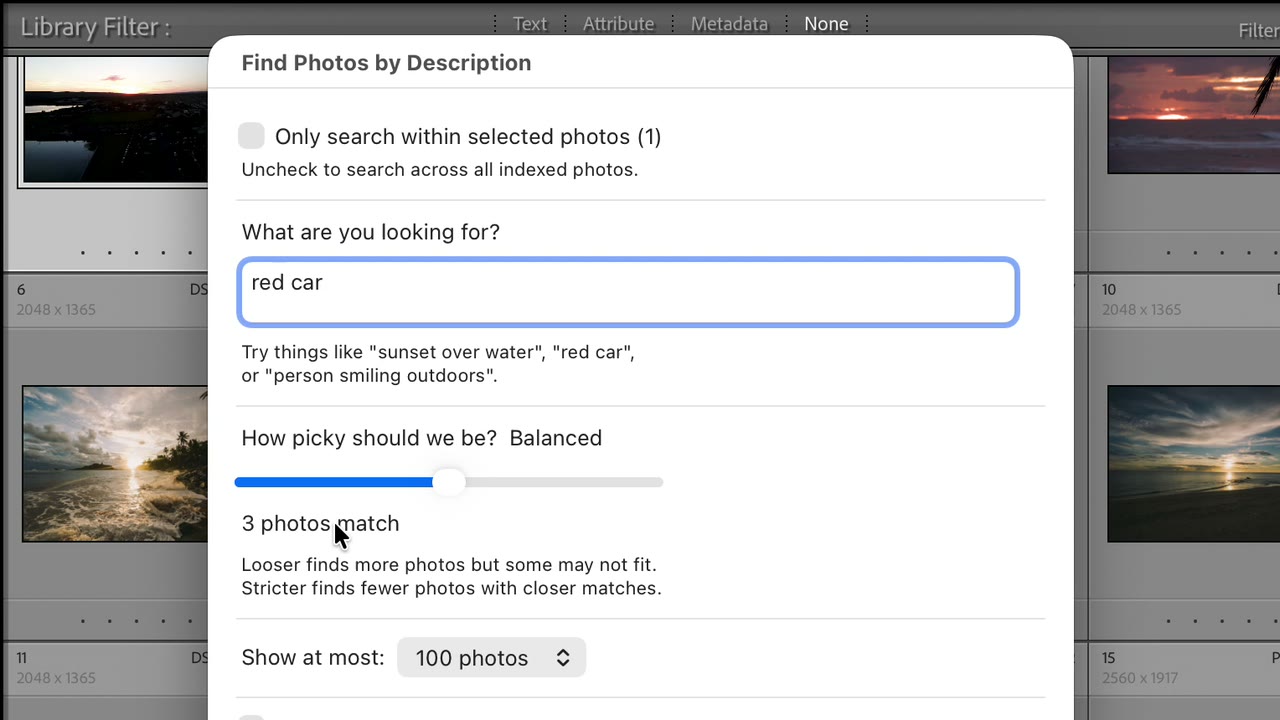
The slider decides how close a match has to be. Watch the count while it moves. Red car. At Balanced, three photos. Slide to Very loose and it jumps past twenty. Find at Very loose, and you can see why. Red buses, a red phone box, even a red autumn tree and a can of cola now count. Start at Balanced. If you get too few, slide looser. If you get wrong ones, slide stricter. Different searches like different settings. Same words at Balanced: just the three red cars, out of a thousand photos, and nobody ever tagged them.
It knows animals. Elephant. Lion. These are from a zoo visit years ago, never keyworded. Highland cow, from a road trip through Scotland. Strict drops the deer that Balanced lets in. Penguin. Squirrel. Not one of these photos had a keyword. Smart Search found them from the pictures alone.
Vehicles. Red double decker bus. Not every result will be spot on. Here a black double decker and a red phone box made it in too. That is the slider at work: looser settings let in more near misses, stricter ones keep fewer. Tuk tuk: three from a trip to Sri Lanka, and one near miss, a scooter. Food and objects. Pizza, from a restaurant shoot. A cup of coffee. Places and scenes. Waterfall. Castle ruins on a cliff. Even the kind of shot. Aerial view of a beach finds the drone photos. And food photographed from above finds the flat lays. And interiors. Modern kitchen picks the kitchens out of a property shoot, which is handy if you photograph real estate. Three to seven plain words work best. Describe what is in the picture, not how it feels.
It knows famous places by name. Tower Bridge. Big Ben. And light and weather. Rainbow finds the two photos with a rainbow in them, out of a thousand. Fog over the mountains.
You can also describe a photo you remember, in a whole sentence. Two dogs playing on the beach. The first results are exactly that. An elephant painting a picture. Slide to Very strict, and one photo is left: the one you were thinking of. The more you describe, the closer the match.
To search one shoot instead of everything, select it first. Here, the Scotland trip. The dialog now offers Only search within selected photos. Waterfall again. One thing to watch: the box starts ticked, and with nothing selected it covers every photo in view. If a search finds too little, check that box first. This time only the six waterfalls from Scotland. The same works for a wedding or an event: select it, then search for the cake or the rings.
The results collection is replaced by your next search. Smart Search Results always holds the latest one. To keep a search, tick Also tag matching photos with this search as a keyword. Now every match carries a real Lightroom keyword under Smart Search, and the Keyword List brings them back any time, without searching again. It is a normal keyword. It works in filters and Smart Collections, and it can travel with your exports.
New photos come in all the time. Here is a trip that was just imported. Select everything again and run Index Selected Photos. With skip ticked, only the fourteen new photos are processed. The thousand others are skipped in seconds. So make it a habit after every import, and search finds the new trip straight away. Acropolis. Smart Search reads the original file, not your Lightroom edits. A black and white conversion changes nothing for search, so it never needs a re-index.
Some searches do not work. An abstract word like happiness finds nothing at Balanced. There is no object or scene to match. The message suggests what to try: a looser setting, or different words. Describe what is in the picture instead. It does not know who anyone is, so names do not work. For people, that is what Face Tagger is for. And for words in your captions or keywords, use Lightroom's own Library Filter.
Manage Smart Search Index shows how many photos are indexed, and has two tools. Remove Selected from Index takes the selected photos out of search, for scans or screenshots you never want in your results. Select them first. Clear Entire Index makes Smart Search forget everything and start over. Keywords already on your photos stay where they are.
A few habits that pay off. Index every shoot right after import. Use plain, concrete words. Start at Balanced and watch the live count. And tick the keyword box for the searches you want to keep. The full written guide is at lightroom-tools.com/smart-search-guide, and a real person answers at [email protected].
The written guide covers the same ground with screenshots: Smart Search setup and usage guide. If something in the video does not match what you see on your own screen, email [email protected] with a screenshot of that spot - I answer every message myself.