FACE TAGGER - THE WALKTHROUGH
Every menu item, on the real screen.
Ten minutes in Lightroom Classic, start to finish: training, Deep Scan, the collections and keywords, corrections, the quick checks and the housekeeping tools. Use the chapters to jump to the part you need.
CLICK TO PLAY - WITH SOUND, CAPTIONS ON SCREEN - 10:30
CHAPTERS
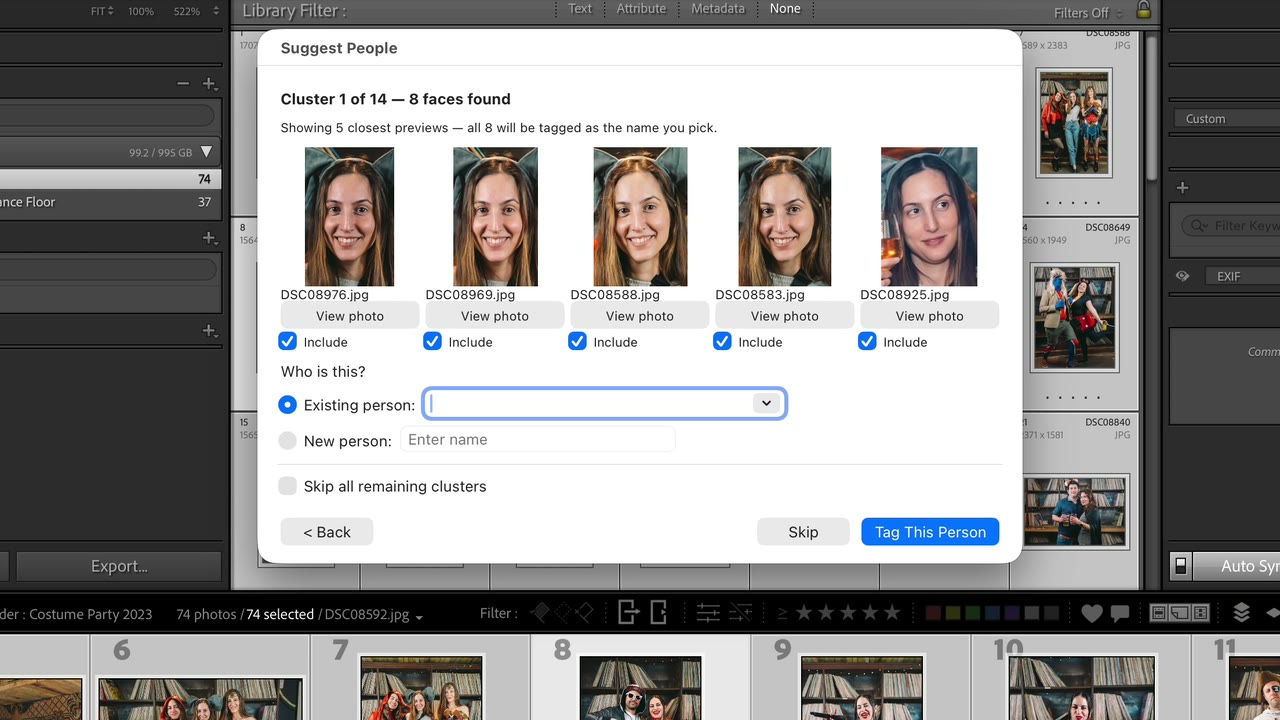
The catalog in the video is a demo catalog: a real costume party, real photos, and made-up names. Everything you see happens through Lightroom's own tools: each person becomes a keyword under "People" and a collection of their photos. Recorded before version 1.2.14, which changed one dialog: when you name a cluster, it now shows every face in it, and only the faces you tick get the name.
Read the narration instead
Face Tagger is a plugin for Lightroom Classic that finds the people in your photos and tags each one as a keyword. In this walkthrough we go through every menu item on a real catalog: training, scanning, review, corrections, and the housekeeping tools. Everything runs on your Mac. No photo and no face ever leaves your computer.
Once the plugin is installed through File, Plug-in Manager, everything lives in one place: Library, Plug-in Extras. Eleven items. We will go through them roughly in the order you would use them on a new catalog. One thing to know before the first click: on first use Face Tagger downloads about 500 megabytes of AI models. That takes two to five minutes, once. After that it starts in seconds.
Step one is training. You show the plugin a few photos of a person and give them a name. Pick three to ten sharp, front-facing photos. Here are four of the same guest. Then Library, Plug-in Extras, Train Selected as Person. Type the name. I will call her Ruby Holloway. Next. When a photo has more than one face, Face Tagger does not guess. It shows the crops, with the name you typed under the first face. Check it is the right one, and press Train. Training complete, four samples. Nothing changes in Lightroom yet, this is just teaching. Same again for a second person: four photos, Train Selected as Person, Iris Calloway. Or leave the name empty on purpose. Then every photo asks you face by face: type a name under the face you want and leave the rest blank. That is how Vera Castellano is trained from a group shot. Three people trained. You can train up to twenty photos at a time, and you can always add more photos to a person later with the same name.
Now the main event. Select the whole folder and run Deep Scan Selected Photos. It needs at least five photos and takes up to two thousand at a time. Deep Scan does three things in a row: it groups unknown faces into clusters and asks you who they are, then it scans against everyone you trained, then it reviews whatever is left. First the clusters. Each dialog shows similar faces the plugin found together, with the file names. A View photo button under every face shows the whole picture, so you can tell two people apart from more than a crop. Usually the plugin is pretty good at recognizing the same person. If a different person ever shows up in a suggestion, untick Include and that face is skipped. Here it is the same woman, so I keep it ticked. This woman was never trained. New person, Maya Lindgren, Tag This Person. That names the whole cluster, tags the photos, and trains her in one go. When the plugin finds more faces that could be the same person, it shows them in Confirm Matches. Let's say this one is not her: untick it, then Confirm. A guest you do not care about? Skip. Nothing is tagged for a cluster you skip. Name as many people as you like. This one becomes Leo Brandt. Tick Skip all remaining clusters and press Skip to move on. Face Tagger only tags people you name. Then the scan itself. Roughly one to three seconds per photo on Apple silicon. Keywords are written as it goes, so nothing is lost if you stop early. Last stage, Review. First the faces nobody has named yet. Skip them all, and it moves on to faces that may belong to people you trained. Small, blurry faces are the hard cases. Look before you confirm. If one slips through, the fix is in chapter six. And the summary. Who was named, how many photos were tagged, and where the results are.
Open the Collections panel. Face Tagger Results is new, and inside it the photos are split by how sure the plugin is. Strong Match holds the confident ones, grouped by who is in the photo. Ruby on her own, Ruby with Maya, and so on. To Review holds possible matches worth a glance. They got the keyword too, this is just where to look first. Body Match sets appear when a face was hidden but the clothing and shape matched someone you trained. This batch had none. No Face Recognized has faces the plugin could not match, and People Detected, No Face, is people seen from behind.
The real result is the keyword. In the Keyword List, every person is under People. Click the arrow next to a name and Lightroom shows every photo of that person. It is a normal keyword, so it works in filters, searches and exports like any other. For a view that stays current after every scan, make a Smart Collection: Library, New Smart Collection, rule Keywords contains the name.
The plugin is not perfect, and the fix is ordinary Lightroom. Filter by a name, and if a match is wrong, untick the keyword on that photo. Let's say these two are not Maya. This Leo match is the small, blurry face we confirmed during the scan. He is in the background and out of focus. The plugin still recognized him, but whether to keep the keyword is up to you. A face it missed works the same way: tick the right name on that photo. Then select the batch and run Sync Corrections and Auto-Tune. It compares your keywords with what the scan suggested: tags you removed, tags you added, tags you kept. Submit. Rejections make the plugin stricter for that person, additions make it looser, and good matches you confirmed become training data. Two or three rounds like this is how accuracy climbs into the nineties.
For a quick spot check there is Who Is This Photo. Select exactly one photo and run it. It names the face and says how sure it is. Nothing is tagged, it is purely a question. On a group it lists every face. Two strong matches, and one guest it does not know.
Once your people are trained, new photos only need the plain scan. Here is a second folder, imported but never scanned. Scan Selected for Faces gives you the controls. Match strictness: strict means fewer false positives, loose catches more. Parallel workers is set for your machine. Split results by confidence keeps the Strong Match and To Review split. Re-scan photos already scanned does exactly that, because by default a photo is only scanned once. And a checkbox per person, so you can scan a shoot for just the people you care about. Scan. Nine of the thirty-seven photos are tagged, and because there are unknown faces, Review opens on its own. Skip the strangers. Then it offers faces that may belong to people you trained. These two really are Iris. Confirm. Let's say this one is not Vera: untick it. That is what the review stage is for.
Suggest People from Clusters is the first half of Deep Scan on its own: a folder full of someone you have not trained yet, named in bulk. Review Unrecognized Faces reopens the review for the last scan, for the day you want to name the faces you skipped.
Manage People and Data is the housekeeping dialog. Rename a Person, and if the new name already exists the two are merged. Lightroom does not let a plugin rename keywords, so rename the keyword itself in the Keyword List as well. Delete a Person removes the plugin's memory of them, the keywords on your photos stay. Set Person Tolerance makes one person stricter or looser than the rest, for someone who keeps getting mixed up. Sync Corrections tunes this for you, so most people never touch it. View Training Data Collections shows exactly which photos taught the plugin each face. Select a bad one there and Forget Selected Training Photos removes just that photo from training. Re-apply Keywords from Scan History puts the People keywords back from the plugin's own memory, no re-scan, if you ever delete them by mistake. And Clear All Scan History forgets every photo you have ever scanned. For one folder, use the Re-scan checkbox instead.
If anything misbehaves, Report a Problem copies the last two hundred lines of the engine log to your clipboard and opens the feedback form. Paste the log into the form, it makes a fix ten times faster.
A few habits that pay off. Start with one folder, not the whole catalog. Train with sharp, front-facing photos. Skip strangers. And run Sync Corrections after every round. The full written guide is at lightroom-tools.com/face-tagger-guide, and a real person answers at [email protected].
The written guide covers the same ground with screenshots: Face Tagger setup and usage guide. If something in the video does not match what you see on your own screen, email [email protected] with a screenshot of that spot - I answer every message myself.