COLLAGE STUDIO - THE WALKTHROUGH
Lightroom to finished collages, on the real screen.
Sixteen minutes in Lightroom Classic and the Collage Studio designer: installing the plugin, your first collage, every size, the layout wall, moving photos and pages around, style, scattered prints, a title and your logo, saving to Lightroom, and changing a collage after it is saved. Use the chapters to jump to the part you need.
CLICK TO PLAY - WITH SOUND, CAPTIONS ON SCREEN - 15:48
CHAPTERS
The photos are from real sessions, exported at a smaller size for this demo, so a few big pages show the low resolution badge. With your full size originals, the same pages print sharp. The plugin version shown is 1.0.0.
Read the narration instead
Collage Studio is a plugin for Lightroom Classic that turns a selection of photos into finished collages: prints for the wall, album spreads, Instagram posts and long boards for your blog. You pick the size and the layout, adjust anything you like, and save. The collages are made from your edited photos and land back in your catalog. In this walkthrough we start from zero: download, install and license, then every feature, one at a time.
Collage Studio needs a Mac with Apple Silicon, M1 or later, on macOS fourteen or newer, and Lightroom Classic. The designer opens in any modern browser. After you buy, you land on this page, and your license key arrives by email. Click Download Collage Studio. Open the zip, and you get two folders: collage-studio.lrplugin, the plugin itself, and collage-studio-server, the engine that does the layout work.
Move both folders to the same place, and keep them side by side. The plugin looks for the engine right next to itself. Lightroom's own Modules folder is a tidy home. In Lightroom, open File, Plug-in Manager, and click Add. Pick the collage-studio.lrplugin folder, and click Add Plug-in. Collage Studio is installed and running. Click Done.
Collage Studio lives under Library, Plug-in Extras: Collage Studio to start a new collage, Edit Collage to reopen a saved one, and the two license items. The first two are also under File, Plug-in Extras, so you can start a collage from the Develop module too. There is no trial, so the first time you start, it asks for your license. Click Activate License. Paste the key from your receipt email, and click Activate. Licensed. You only do this once on each Mac.
Let's make a first collage. Select a handful of photos in the Library, here eight from a session of three sisters. Portrait and landscape can mix. Open Library, Plug-in Extras, Collage Studio. Lightroom prepares the photos for a few seconds, and finds the faces and subjects in each one. Then the designer opens in your browser, with the page already laid out. It runs on your own Mac, so your photos never leave your computer.
Across the top: the project name, how many pages and photos it holds, a link to the guide, and Save to Lightroom. On the left, the settings: Size, Pages, Style, Text and Logo. In the middle, the page itself, with the photos on this page listed right below it. On the right, the layout wall: other ways to lay out this page, every one already showing your own photos. And along the bottom, all your pages, plus Unused, where photos wait when you take them off a page.
The page starts as an eight by ten inch print, which is fine for now. Click any layout on the wall, and the page takes it. Click Save to Lightroom, check the name, and click Save. Lightroom builds the page from your full resolution edited photos, so keep it open while it saves. A few seconds later, it is done. Back in Lightroom, the collage is in a new collection set called Collage Studio, in a collection named after the project. That is the whole loop: select, lay out, save.
Now the details, starting with which photos go in. Collage Studio fills the pages in your Lightroom order, so put the photos in the order you want first. In a collection, you can drag them into any order. With nothing selected, it takes every photo in the view. With a single photo selected, it asks whether you meant just that one, or everything in the view. A project holds up to two hundred photos, twenty on a page. Pick more, and it offers to continue with the first two hundred. Videos are skipped, so a mixed selection is fine. For the rest of this video, one bigger project: a maternity album of forty-eight photos, already split into pages.
The Size panel has five families. Print has the classic print sizes in inches, from four by six up to twenty-four by thirty-six, in portrait or landscape. Metric has the same idea in centimetres, from ten by fifteen up to A1. Album has square album pages, and two-page spreads with a guide for the fold. Screen has exact sizes for Instagram, Stories and Reels, Facebook, Pinterest, full HD and 4K, plus blog boards: a set width, and as tall as the layout needs. And Custom takes any width and height, in inches, centimetres or pixels. For print, the resolution is three hundred pixels per inch unless you change it, and Bleed adds a little extra on each side for printing to the edge. The line below shows the exact size in pixels. Pick a big size, and any photo that would print below two hundred pixels per inch gets a small badge, so you know before you print. On screen sizes, it says Low resolution instead. The photos in this demo are smaller copies, so you will see that badge on some big frames. With your full size originals, the same pages print sharp. For this album: ten by ten inch spreads. Every page lays itself out again for the new size. So choose the size first. Changing it later lays out every page again, and replaces any layouts you picked by hand.
The Pages panel decides how the photos are split. Choose about how many photos go on each page, or how many pages you want in total. Here, about six per spread. The photos fill the pages in your Lightroom order, up to twenty on a page. Once you have moved things by hand, a change here waits for Re-arrange, and Re-arrange asks first, because it replaces your manual changes.
The wall on the right shows layouts for the page you are on, in groups. No crop keeps every photo whole, or very nearly, each in its own shape, like a mosaic. Grid has even rows and columns, and layouts with one big photo and the rest beside it. Each card shows how much it crops. On spreads, Two pages gives each side of the spread its own layout. And Scattered lays the photos out like prints tossed on a table. More on that later. When a layout crops, the crop is framed around faces and people, with room above their heads. Click any card, and the page takes that layout. Every page can have its own.
Everything on the page responds to the mouse. Click a photo to select it, and its file name shows below the page. Hold Control and scroll, or pinch on a trackpad, to zoom into a photo. Then drag the photo to move it inside its frame, and choose what shows. The Zoom slider zooms too, and Reset puts it back. Drag the lines between photos to make one bigger and its neighbours smaller. Hold Option and drag one photo onto another, and they swap places. The layout stays the same. Double-click any photo to see it large.
The photos on this page are listed under it. Drag them into a new order, and they change frames. Click the cross to take a photo off the page. It goes to Unused, at the bottom. Drag a photo onto another page in the strip to move it there. In Unused, click a photo to add it to this page, and the page lays itself out again. Or drop it right onto a photo to replace it, and the one it replaced goes to Unused. Each photo sits on one page at a time, so nothing appears twice.
The strip at the bottom holds every page. Click one to open it, or use the arrows above the page, or the left and right keys. Drag a page onto another to change the order. The cross removes a page, and its photos wait in Unused. The plus adds an empty page, and if you drop a photo on the plus, it starts a new page with that photo.
Forgot a photo? Select it in Lightroom, then click Add from Lightroom in the designer. The new photos wait in Unused. Drop one onto a photo to replace it, or click it to add it to the page.
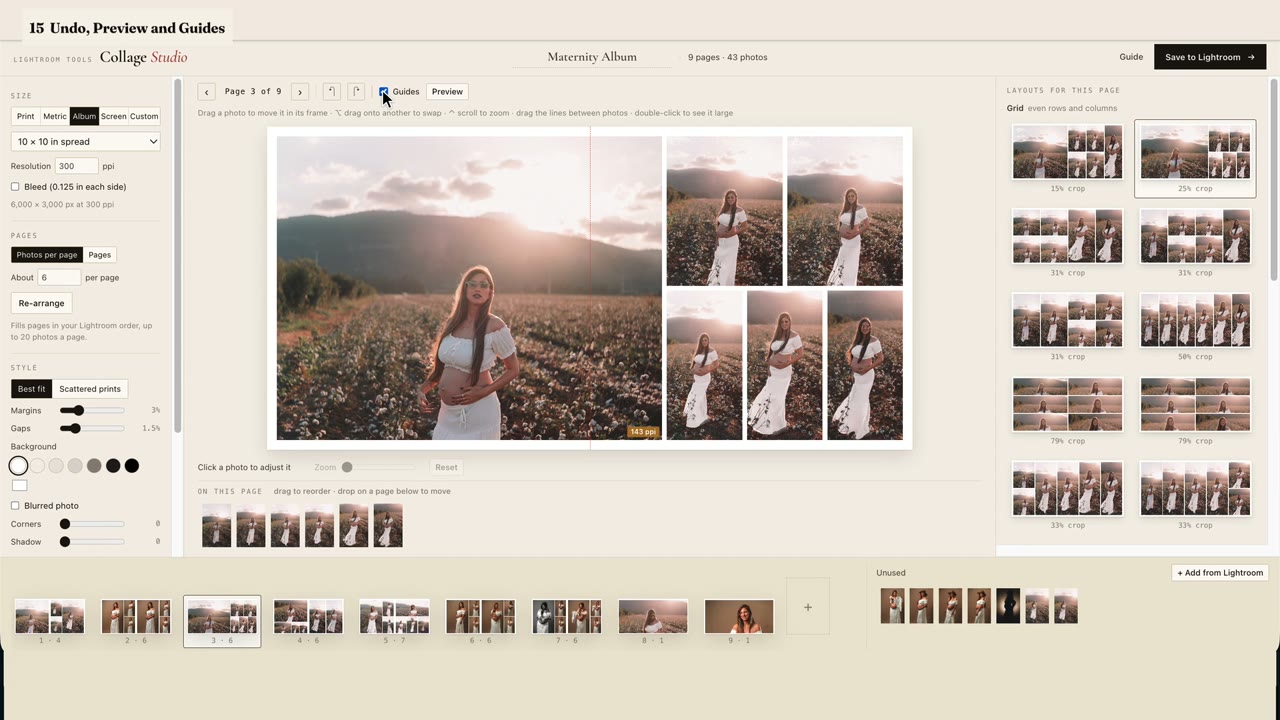
Every change can be undone. Command Z steps back, Shift Command Z steps forward again, and the arrows at the top do the same. Preview shows the whole page large. Step through the pages with the arrow keys, and press Escape to go back. Guides shows the fold of a spread, the trim line when Bleed is on, the band the title sits in, and on a Facebook cover, the part phones keep. Guides stay on screen, and never go into the saved file.
The Style panel sets the look of every page at once. Margins is the space around the edge, and Gaps the space between photos. Pick a background colour, or any colour you like. Or tick Blurred photo, and the background becomes a soft, blurred copy of one of your photos. Blur and Darken tune it, and Use as background picks the photo. Corners rounds the photo corners, and Shadow lifts the photos off the page.
For a more playful page, switch the style to Scattered prints. The photos become prints, tossed on the table. Prints sets the frame: a classic white border, or Instant, with the deeper bottom edge of an instant photo. Shuffle tosses them again, and it picks the toss that hides the fewest faces. Tilt sets how much they lean. Drag any print to move it, and Bring to front puts the selected print on top. For the album, back to Best fit.
In the Text panel, tick Add a title. It starts with the project name, and you can add a second line below it. There are four fonts: Serif, Sans, Script and Typewriter. Then set the size and the colour. Set the alignment, put the title at the top or the bottom, and show it on the first page only, or on every page. The title goes into the saved file exactly as you see it here.
In the Logo panel, tick Add my logo, and choose a PNG file. A transparent background works best. Pick a corner or the bottom centre, then set the size and the opacity. Collage Studio remembers your logo, so it is ready in every new project.
Ready. Click Save to Lightroom. Name sets the file names and the collection they go into. Save in Collage folder keeps every collage together, in a folder you choose. Or save them next to the photos. Each page goes into the Lightroom folder of its most recent photo, right after that photo, or first or last in the folder. File: JPEG at the quality you like, or 8-bit TIFF. Colour: sRGB for screens and most print labs, or Adobe RGB and Display P3 when your printer asks for them. Sharpen for sets Lightroom's output sharpening: screen, matte paper or glossy paper. The line at the bottom sums it all up, with a note if a photo would print small, or a page is empty. Click Save. Lightroom builds each page from your edited originals, at exactly the size it needs. You can use other apps meanwhile; just leave Lightroom open, on the same catalog. Done. Every spread is saved.
In Lightroom, the album is in the Collage Studio collection set, in its own collection, one file per spread. The files are full size: this ten by ten inch spread is six thousand pixels wide, ready for the album lab. And because they were saved next to the photos, each spread sits in the shoot's folder, right after the photos on it.
Each saved collage remembers how it was made. Select its pages in Lightroom, and choose Edit Collage, under Plug-in Extras. The designer opens with everything exactly as you left it: the layouts, the crops, the title and the logo. Select some new photos along with the pages, and they wait in Unused, ready to drop in. Save again, and you get a fresh set of files. The collection keeps only the newest set, and the earlier files stay in your catalog and on your drive.
Three more ideas. An Instagram carousel from the sisters' session: Instagram portrait, three photos a post, and four posts ready to share. A board for a travel blog, sixteen hundred pixels wide and as tall as the layout needs. And a sixteen by twenty print for the wall, with scattered instant prints, a title and your logo.
Your license covers one Mac at a time. Moving to a new one? On the old Mac, choose Deactivate License, under Library, Plug-in Extras. Then activate the same key on the new Mac, and you are set.
A few things to know. Keep Lightroom open, on the same catalog, while a collage saves. If you quit Lightroom, the designer closes a couple of minutes later, so save first. If an original is offline, Lightroom uses its Smart Preview, and the photo is marked in the trays. The designer remembers your last size, style and save settings, and starts your next project with them. The full written guide is at lightroom-tools.com/collage-studio-guide, and a real person answers at [email protected].
The written guide covers the same ground with screenshots: Collage Studio setup and usage guide. If something in the video does not match what you see on your own screen, email [email protected] with a screenshot of that spot - I answer every message myself.