How to reorder your Instagram grid (2026)
Quick Answer
To reorder your Instagram grid: on your phone, open your profile, long-press any post, tap "Reorder grid," then drag posts into the order you want. Changes save instantly. Pinned posts stay locked at the top, and it works on iOS and Android only - no desktop version yet.
Reordering does not touch a post's date, its reach, or its likes. It only changes where the post sits on your profile. The one thing it will not do is decide the order for you - that part is still your call.
I build a Lightroom Classic plugin that sequences photos into an Instagram grid, so I have spent more hours than I would like to admit thinking about feed order. For about four years, the honest answer to "can I rearrange my grid after posting?" was no. You deleted the post and put it up again - losing its date, its likes, and every comment - or you lived with the feed you had. As of June 2026, that finally changed.
What is Instagram's Reorder Grid feature?
On June 8, 2026, Meta rolled out "Reorder Grid" globally. It does exactly what photographers have asked for since the grid existed: it lets you drag any post on your profile into any position, no matter when you posted it. Instagram head Adam Mosseri first teased it back in January 2025, alongside an apology for the switch to taller portrait thumbnails that had quietly wrecked a lot of carefully built feeds.
The reason it matters is what it replaces. Until this week, the only way to "move" a post was the delete-and-repost trick, and that came at a real cost: the post lost its likes, its comments, and its original date, and your followers got served it again as if it were brand new. Reorder Grid moves the post for real. Same post, same engagement, new spot. That is a bigger deal than it sounds.
How to reorder your Instagram grid, step by step
Here is the full process. Once your app is current, it takes about ten seconds.
- Update Instagram to the latest version from the App Store or Google Play. The rollout is server-side, so if you do not see the option yet, give it a day or two.
- Open your profile and long-press the post you want to move.
- Tap "Reorder grid" in the menu that pops up. It sits next to "Pin to main grid" and "Archive."
- Drag posts around. The grid rearranges live as you move tiles, so you can watch the layout take shape.
- Lift your finger. The change saves automatically and every visitor sees the new order right away. Changed your mind? Tap Undo at the top - but only before you leave the screen. Undo does not carry across sessions.
One nice touch: the reorder view shows your entire grid at once, so you are not squinting at a single row at a time. The trade-off is that everything is live, so there is no draft mode to experiment in privately.
What you can't move (and what doesn't change)
Reorder Grid has a short list of limits, and most of them are sensible.
| Detail | How it behaves |
|---|---|
| Pinned posts | Locked at the top, blacked out in the reorder view, cannot be dragged |
| Pinned Reels | Same as pinned posts - they stay fixed at the top |
| Where it works | iPhone and Android app only. No web or desktop version yet |
| Post date | Unchanged. Reordering is display-only |
| Reach and ranking | Unchanged. Feed and Explore ranking are not affected |
| Likes and comments | Unchanged. All engagement stays on the post |
| How often | No limit. Rearrange as many times as you like |
The one that trips people up: if a post looks greyed out and refuses to move, it is pinned. Pinned posts and pinned Reels stay bolted to the top of your profile. Unpin it first (long-press the post, then "Unpin") if you want it down in the flow with everything else.
The part Instagram left out: what order?
So you can drag posts anywhere. Now comes the question the feature does not answer: what order should they actually go in?
Instagram gives you a drag handle, not taste. It will let you build a grid that looks like a yard sale just as happily as one that looks like a portfolio. And dragging twenty or thirty tiles around with your thumb, backing out to see the whole grid, going back in to swap two photos that fight each other, then repeating - that is the kind of fiddly that makes most people stop at "eh, good enough."
This is the same problem feed planners have always solved. What is new is that you can now apply the result to a live profile with months of posts on it, not just a brand-new account. That is genuinely new, and it is why planning the order is suddenly worth doing for everyone, not only people starting fresh.
How to choose the order: brightness first, color second
Two rules carry most of the weight.
Match brightness across posts. A grid where some shots are dark and moody and others are bright and airy reads as restless no matter how well the colors coordinate. Even exposure across the set is the single biggest lever for a feed that looks deliberate. Get that right before you touch color.
Then order by color flow. Arrange the photos so the dominant colors move like a slow gradient across each row of three: warm tones easing into greens, into teals, into cool blues, for example. It is the most forgiving pattern for photographers because it works with mixed subjects. You are sequencing by tone, not forcing every shot into a single theme.
Dropped in randomly

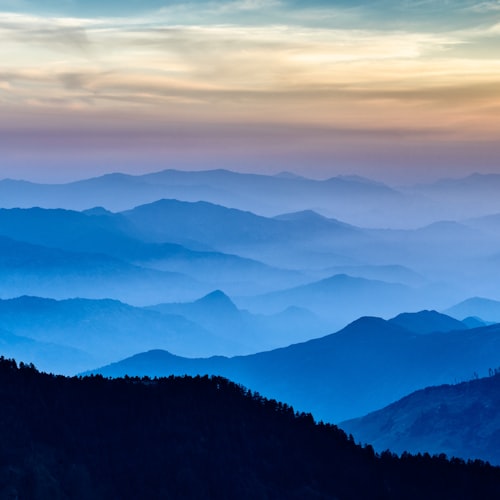


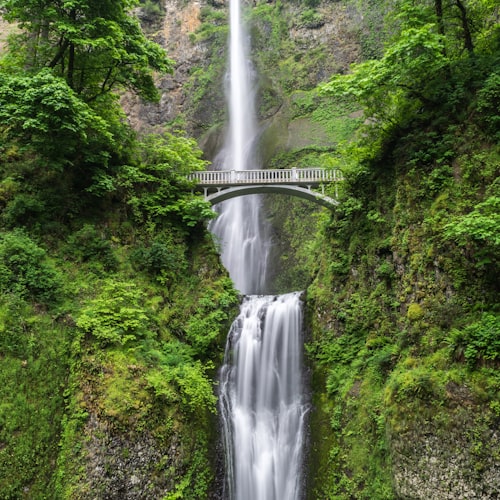

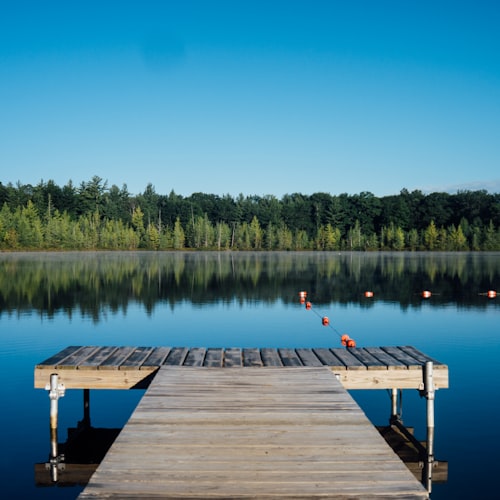
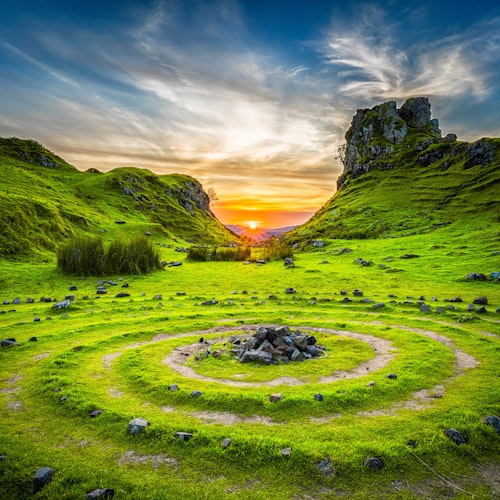

Reordered by color flow
If you want the full method - the five grid patterns, the thumbnail-crop gotcha, and how the reverse-upload math used to work - I wrote a longer walkthrough on how to plan your Instagram feed grid by color flow.
Plan the order in Lightroom, then apply it with Reorder Grid
Here is the workflow that makes the new feature actually pay off if you shoot and edit in Lightroom Classic.
Your photos already live in your catalog, already edited. So instead of guessing at order by thumb on a phone screen, sequence them where they are. That is what I built the Instagram Grid Planner to do. You select your candidates in Lightroom, and it lays them out as a 3-up feed grid sorted by color. Three sort modes cover most sets: Smooth Flow weaves color frame to frame, Cluster groups by color family, and Hue Wheel walks the full color circle. One tap to try a mode, one tap to switch, then drag individual tiles to fine-tune. It renders through your develop edits, so the grid you preview is the grid you will post, and it exports the photos renamed 01_, 02_, 03_ in posting order.
Before this week, a tool like that mostly mattered before your first post, because once photos were up you were stuck with the order. Reorder Grid removes that ceiling. Now you can plan the sequence in Lightroom, then open Instagram and drag your existing posts to match - no deleting, no re-posting, no lost likes. The planning was always the hard part. Reorder Grid is finally the easy "apply" step it was missing.
Want the color-flow order worked out for you? The Instagram Grid Planner sequences your selected Lightroom photos into a 3-up feed grid by color, ready to recreate with Reorder Grid. One-time $19, no subscription.
Get the Instagram Grid Planner - $19Frequently asked questions
Can you reorder Instagram posts without deleting them?
Yes. That is the whole point of the new Reorder Grid feature. You drag a post into a new position and it keeps its original date, likes, and comments. The old delete-and-repost workaround is no longer needed.
Does reordering your grid change the post date or lose likes?
No. Reordering only changes where a post appears on your profile. The post date, its reach and ranking, and all of its likes and comments stay exactly as they were.
Can you reorder your Instagram grid on a computer?
Not yet. Reorder Grid is in the iOS and Android apps only. There is no web or desktop version at launch.
Why is one of my posts greyed out and will not move?
It is pinned. Pinned posts and pinned Reels stay locked at the top of your profile and show as blacked out in the reorder view. Unpin the post first if you want it in the flow with everything else.
How do you decide what order to put posts in?
Match brightness across your posts first, then order by color so tones move smoothly across each row of three. Photographers can sequence the whole set by color in Lightroom and apply that order on Instagram with Reorder Grid.