How to install a Lightroom Classic plugin (step by step)
Quick Answer
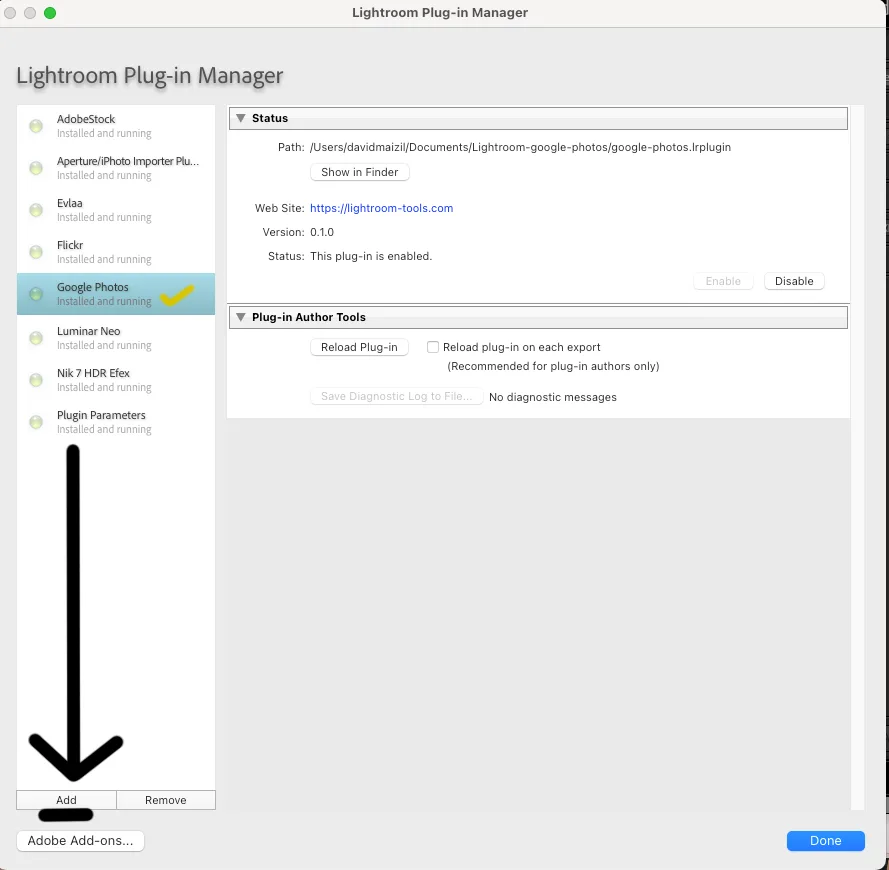
To install a Lightroom Classic plugin: download it and unzip it so you have a folder ending in .lrplugin, open Lightroom Classic, go to File > Plug-in Manager, click Add, select the .lrplugin folder, and click Add Plug-in. A green light next to the plugin name means it is active. The whole thing takes about two minutes and never touches your catalog or your photos.
If a plugin you just added does not appear, it is almost always one of three things: you pointed Lightroom at the wrong folder, the plugin lives in a menu you have not checked yet (Publish Services, or File > Plug-in Extras), or Lightroom needs a restart. All three fixes are below.
I build Lightroom Classic plugins - seven of them so far - and the most common email I get is not about features. It is "how do I install this?" Adobe's plugin system is genuinely simple once you have done it once. The first time is confusing because plugins can install two different ways and then show up in three different places. Here is the whole thing, start to finish.
What is a Lightroom Classic plugin (and what is a .lrplugin file)?
A plugin adds a feature Adobe did not build into Lightroom Classic: publishing straight to a cloud service, tagging the people in your photos, searching your catalog by description, planning a social feed. It runs inside Lightroom and uses your existing catalog.
Technically, a plugin is a folder, not a single file, and its name ends in .lrplugin (for example google-photos.lrplugin). On a Mac that folder looks like one file in Finder, but it is really a package with Lua scripts inside. You almost never need to look in there. You just need to know that the .lrplugin folder is the thing you point Lightroom at.
The plugins I make cover the range, if you want concrete examples: Google Photos and Google Drive publish your edits to the cloud, Face Tagger tags people automatically, Smart Search finds photos by description, and the Instagram Grid Planner sequences a feed by color. They all install the same way, which is the way every Lightroom Classic plugin installs.
How do you install a Lightroom Classic plugin?
Four steps. Do them in order and you are done in about two minutes.
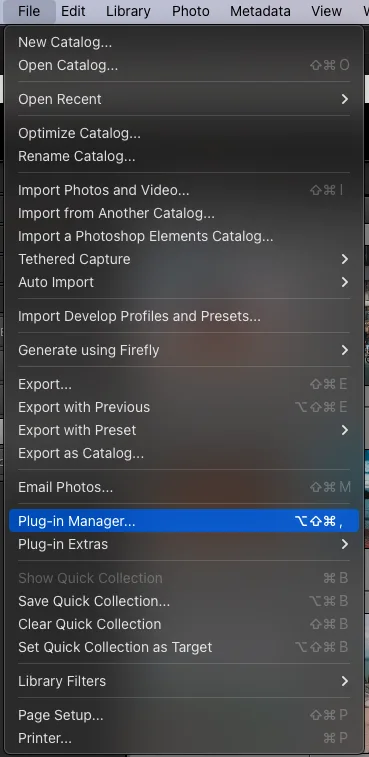
- Download and unzip. Most plugins arrive as a
.zip. Unzip it so you can see the folder ending in.lrplugin. Drop that folder somewhere stable you will not reorganize later, like aLightroom Pluginsfolder in Documents. - Open the Plug-in Manager. In Lightroom Classic, go to File > Plug-in Manager.
- Click Add and select the plugin. The Add button is in the bottom-left of the window. Browse to your
.lrpluginfolder, select it, and click Add Plug-in. - Confirm the green light. The plugin appears in the left list with a green status dot, which means it loaded and is enabled. Click Done.
| Step | What you do | Where |
|---|---|---|
| 1 | Download and unzip to a stable folder | Finder / File Explorer |
| 2 | Open the Plug-in Manager | File > Plug-in Manager |
| 3 | Click Add, select the .lrplugin folder | Bottom-left of the Plug-in Manager |
| 4 | Check the green light, click Done | Plugin status panel |
One thing that trips people up at step 1: do not unzip twice. A double-unzip sometimes creates a nested folder like google-photos.lrplugin/google-photos.lrplugin. If that happens, point Lightroom at the inner folder, or move the inner one out. You want to select the folder that actually ends in .lrplugin and contains the scripts, not a wrapper around it.
Where does the plugin show up after you install it?
This is the part that confuses first-timers, because the answer depends on what the plugin does. There is no single "plugins" menu in Lightroom. Here is where to look:
| Plugin type | Where it appears | Example |
|---|---|---|
| Publish plugin | Left panel of the Library module, under Publish Services | Google Photos, Google Drive |
| Plug-in Extras | File > Plug-in Extras, or Library > Plug-in Extras | Face Tagger, Smart Search |
| External editor | Photo > Edit In | Round-trip editors |
So if you installed a publishing plugin and went hunting in Plug-in Extras, you would not find it - it is waiting in the left panel of Library instead. Knowing the plugin's type tells you exactly where to look.
Why is my Lightroom plugin not showing up?
A plugin shows a green light in the Plug-in Manager but you cannot find its feature, or it will not load at all. In my experience it is almost always one of these six, in rough order of how often I see them:
- It is in a menu you did not check. See the table above. Publish plugins live in Publish Services, not Plug-in Extras. This is the number one cause.
- You selected the wrong folder. If you added a wrapper folder or a double-unzipped copy, Lightroom may load nothing useful. Remove it in the Plug-in Manager and re-add the actual
.lrpluginfolder. - The green light is off. If the status dot is gray or red, the plugin is disabled or errored. Select it and read the message Lightroom shows under its name - it usually names the exact problem.
- Lightroom needs a restart. A few plugins only register their menu items at launch. Quit and reopen Lightroom Classic.
- "Store presets with this catalog" is on. On some setups this setting hides plugin items. Open Preferences > Presets, turn it off, and restart. This one is obscure but real.
- Fresh-install preferences quirk. On a brand-new Lightroom install that has never had its settings changed, plugins sometimes do not register. Open Preferences, change any small setting, save, and restart. That writes the preferences file and clears it up.
On a Mac, there is one more: if you downloaded a plugin that includes a helper program and macOS blocked it, approve it in System Settings > Privacy & Security, then re-add the plugin. Pure-script plugins (like the two Google publishers) never hit this.
Where do Lightroom plugins install on Mac vs Windows?
You have two options, and the Plug-in Manager method above is the one I recommend for almost everyone.
Method 1 - Plug-in Manager (recommended). You can keep the .lrplugin folder anywhere on your drive and add it through the manager. The only rule: do not move or rename that folder afterward, or the link breaks and the plugin disappears. Keep it in a folder you will not reorganize.
Method 2 - the Modules folder (auto-load). If you drop a .lrplugin folder into Lightroom's Modules folder, it loads automatically on the next launch with no manual Add step. The folder lives here:
| Operating system | Auto-load Modules folder |
|---|---|
| macOS | ~/Library/Application Support/Adobe/Lightroom/Modules/ |
| Windows | C:\Users\[you]\AppData\Roaming\Adobe\Lightroom\Modules\ |
If that Modules folder does not exist yet, you can create it. One platform note worth knowing before you buy anything: pure-script plugins run on both Mac and Windows, while plugins that bundle local AI (Face Tagger, Smart Search, and the Grid Planner) are Apple Silicon Mac only right now. The two Google publishers run everywhere.
Do you have to reinstall a plugin after a Lightroom update?
No. A plugin you added through the Plug-in Manager stays registered across Lightroom Classic updates, because Lightroom remembers the path to your .lrplugin folder. You only need to act again in two cases: you moved or renamed that folder, or the plugin shipped a new version you downloaded and want to swap in. In that second case, replacing the folder contents or re-adding the new version is all it takes.
Frequently asked questions
Are Lightroom Classic plugins safe to install?
A plugin is a folder of Lua scripts that Lightroom runs with the same access you have, and Adobe does not sandbox them. So install plugins from sources you trust. Reputable plugins run locally and never ask for your Adobe password.
Do Lightroom plugins work on Lightroom CC or mobile?
No. The Plug-in Manager and the .lrplugin format are exclusive to Lightroom Classic on desktop. The cloud-based Lightroom CC and Lightroom mobile do not support installable plugins.
How do I update a Lightroom Classic plugin?
Download the new version, then in File > Plug-in Manager point the plugin at the updated .lrplugin folder, or remove the old entry and Add the new one. If you used the Modules folder, replace the folder and restart Lightroom.
How do I remove a Lightroom Classic plugin?
Open File > Plug-in Manager, select the plugin, and click Remove. Deleting the .lrplugin folder from disk works too. Neither touches your catalog or photos.
Are Lightroom Classic plugins free?
Some are free, some are paid. Most Lightroom Tools plugins are one-time purchases between $19 and $39 with no subscription; the one exception is Keptfolio, a yearly subscription because it includes hosting for your portfolio website. Most paid plugins offer a trial so you can test before you buy.
Now that you know how installing works, here is what a plugin can actually add to your Lightroom Classic workflow - publishing to Google Photos and Drive, automatic face tagging, search by description, Instagram grid planning, develop-settings clipboards, and publishing a hosted portfolio website. Seven plugins - six one-time purchases and one subscription.
See the plugins